
AICHE is voice-to-text for Linux that works anywhere you can type. Press one hotkey, speak naturally, and get clean, polished text directly at your cursor - in your terminal, editor, browser, chat app, email, or documents.
Works with Cursor, VS Code, Slack, Discord, Gmail, Notion, GitHub, Linear, ChatGPT, Claude, and 100+ other applications.
Dictate anywhere. One system-wide hotkey. Press, speak, release, and your text appears in the active app. Smart Insert can paste automatically, and optional Auto-Send can press Enter for you.
AI-polished text. AICHE removes filler words, fixes grammar and punctuation, and turns speech into text you can actually send. Personal Dictionary learns names, acronyms, codebase terms, and domain-specific vocabulary.
99 languages. Cloud transcription supports 99 languages. Download local speech models to transcribe fully on-device and offline in 25 supported languages.
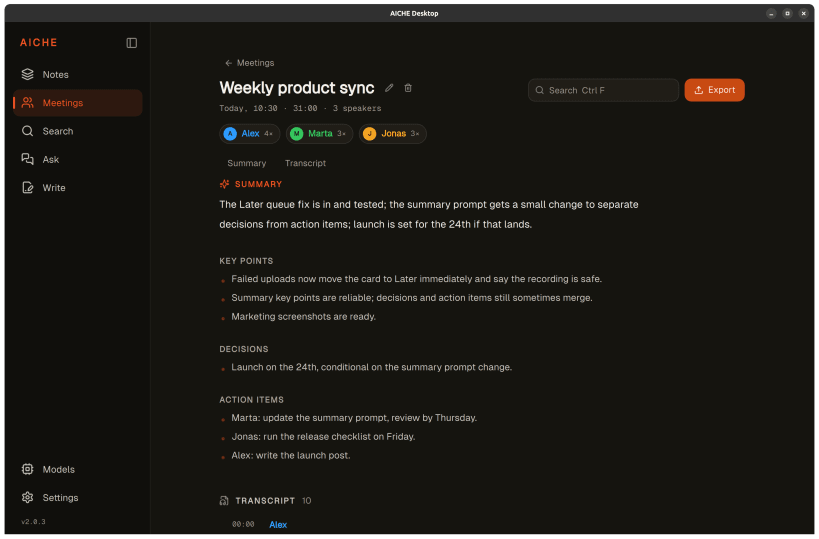
Meetings. Record people in the room, capture an online call with system audio and microphone, or upload an existing audio or video file. AICHE separates speakers and produces the transcript, summary, key points, decisions, and action items. Export as text, Markdown, PDF, SRT, or WebVTT.
Notes and Later. Every recording can become part of your searchable library. Organize notes with tags and device filters. Record first and process later when you are offline, busy, or simply do not want to wait.
Search and Ask. Search across your notes and meetings by meaning, time, device, tag, or content type. Ask questions across your library and get answers grounded in the original notes and meetings.
Write with your voice. Create documents inside AICHE by dictating, then reshape the text with natural-language commands such as shortening, restructuring, or rewriting it.
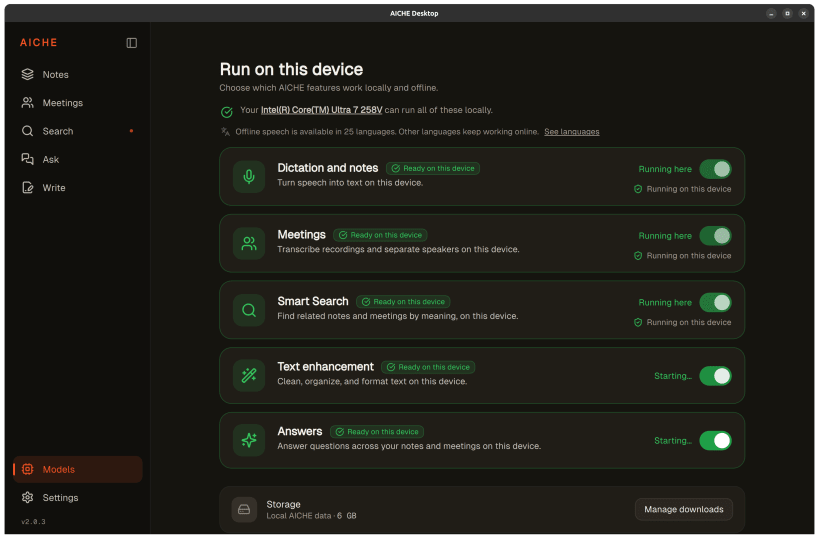
Run AI on your device. Dictation, meeting transcription and speaker separation, Smart Search, text enhancement, and Answers can run locally on supported hardware. Choose which features use your machine and manage downloaded models individually.
Voice Code. Hands-free workflows for developers, including neural voice activity detection, dictating prompts and code comments, and voice commands for supported editor interactions.
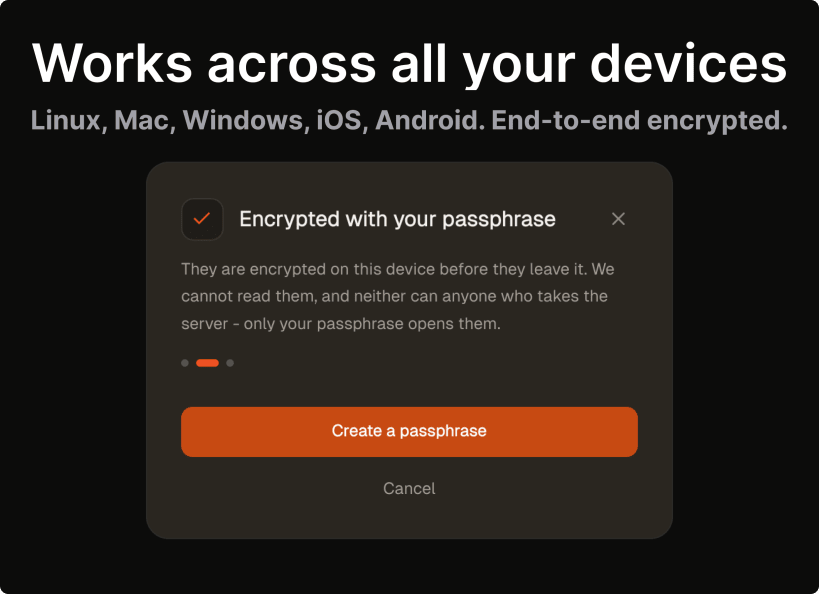
Private by design. Cloud Sync is end-to-end encrypted. Your passphrase stays on your device. Synced data is decrypted locally, and AICHE does not use your recordings to train models.
Cross-device. Use the same account, history, dictionary, and synced notes across Linux, macOS, Windows, iPhone, Android, and Apple Watch.
Links
You are about to open
Do you wish to proceed?
Thank you for your report. Information you provided will help us investigate further.
There was an error while sending your report. Please try again later.
Snaps are applications packaged with all their dependencies to run on all popular Linux distributions from a single build. They update automatically and roll back gracefully.
Snaps are discoverable and installable from the Snap Store, an app store with an audience of millions.
Snap is available for Red Hat Enterprise Linux (RHEL) 8 and RHEL 7, from the 7.6 release onward.
The packages for RHEL 7, RHEL 8, and RHEL 9 are in each distribution’s respective Extra Packages for Enterprise Linux (EPEL) repository. The instructions for adding this repository diverge slightly between RHEL 7, RHEL 8 and RHEL 9, which is why they’re listed separately below.
The EPEL repository can be added to RHEL 9 with the following command:
sudo dnf install https://dl.fedoraproject.org/pub/epel/epel-release-latest-9.noarch.rpm
sudo dnf upgrade
The EPEL repository can be added to RHEL 8 with the following command:
sudo dnf install https://dl.fedoraproject.org/pub/epel/epel-release-latest-8.noarch.rpm
sudo dnf upgrade
The EPEL repository can be added to RHEL 7 with the following command:
sudo rpm -ivh https://dl.fedoraproject.org/pub/epel/epel-release-latest-7.noarch.rpm
Adding the optional and extras repositories is also recommended:
sudo subscription-manager repos --enable "rhel-*-optional-rpms" --enable "rhel-*-extras-rpms"
sudo yum update
Snap can now be installed as follows:
sudo yum install snapd
Once installed, the systemd unit that manages the main snap communication socket needs to be enabled:
sudo systemctl enable --now snapd.socket
To enable classic snap support, enter the following to create a symbolic link between /var/lib/snapd/snap and /snap:
sudo ln -s /var/lib/snapd/snap /snap
Either log out and back in again or restart your system to ensure snap’s paths are updated correctly.
To install AICHE Desktop, simply use the following command:
sudo snap install aiche-desktop
Browse and find snaps from the convenience of your desktop using the snap store snap.

Interested to find out more about snaps? Want to publish your own application? Visit snapcraft.io now.