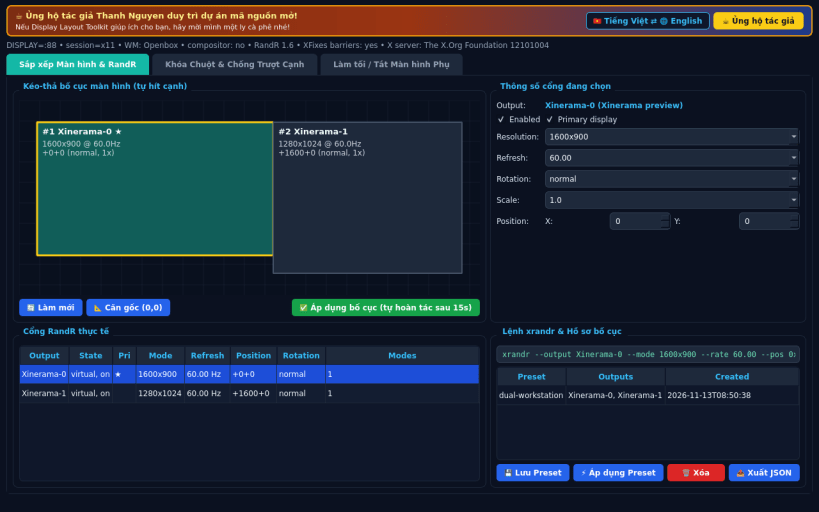
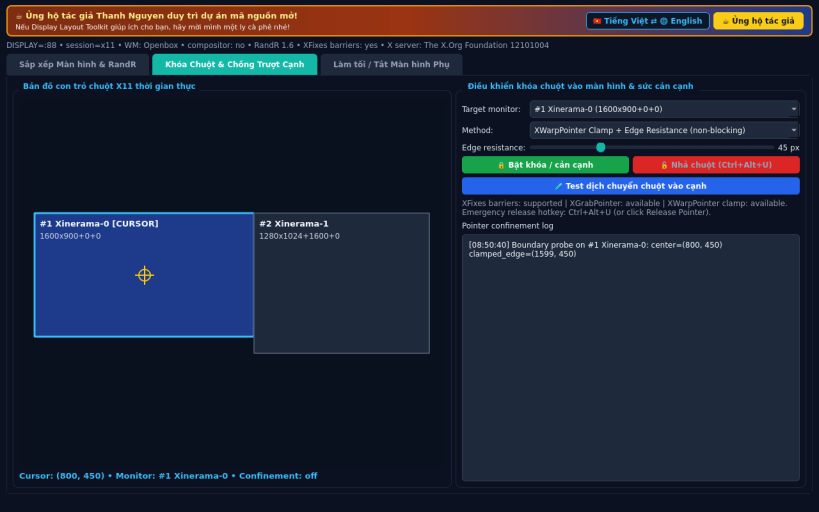
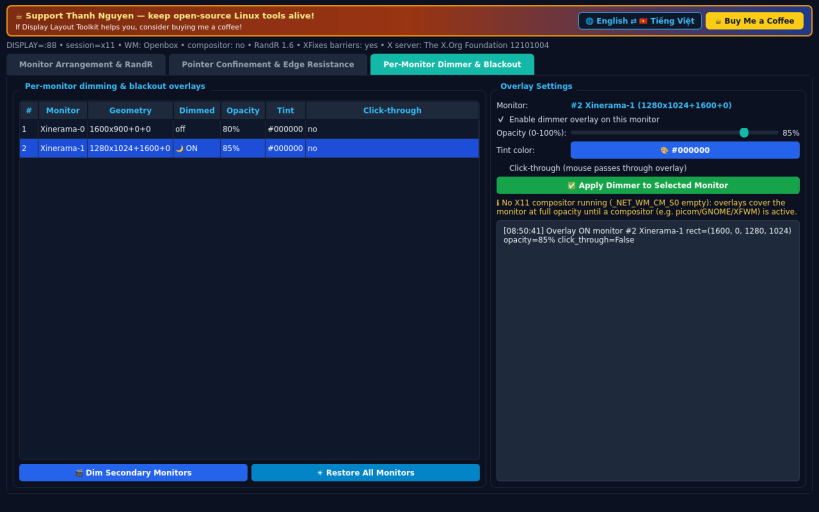
A Linux X11 alternative to Actual Multiple Monitors. Disclaimer: Independent open-source project, not affiliated with or endorsed by Actual Tools. Multi-monitor arrangement and cursor confinement require an X11 session; Wayland-native compositors do not allow third-party RandR layout changes or pointer grabs.
FEATURES • Visual drag-and-drop monitor arrangement & RandR output editor: inspect real RandR outputs, resolutions, refresh rates, scales and rotation, drag displays on a proportional canvas with edge snapping, preview the generated xrandr command, and apply with a 15-second auto-revert confirmation dialog or save/apply JSON layout presets. • Pointer monitor confinement & edge resistance: confine the X11 cursor inside any monitor via XGrabPointer (InputOnly confine window), XFixes pointer barriers, or XWarpPointer soft clamping with adjustable inter-monitor edge resistance and live cursor telemetry map. • Per-monitor dimmer & blackout overlays: dim or black out individual monitors (0%-100% opacity, custom tint, optional click-through or ESC/click-to-restore) for focus or video.
SUPPORT & DONATE • Created by Thanh Nguyen — https://buymeacoffee.com/thanhnv128b
You are about to open
Do you wish to proceed?
Thank you for your report. Information you provided will help us investigate further.
There was an error while sending your report. Please try again later.
Snaps are applications packaged with all their dependencies to run on all popular Linux distributions from a single build. They update automatically and roll back gracefully.
Snaps are discoverable and installable from the Snap Store, an app store with an audience of millions.
Snapd can be installed from Manjaro’s Add/Remove Software application (Pamac), found in the launch menu. From the application, search for snapd, select the result, and click Apply.
Alternatively, snapd can be installed from the command line:
sudo pacman -S snapd
Once installed, the systemd unit that manages the main snap communication socket needs to be enabled:
sudo systemctl enable --now snapd.socket
To enable classic snap support, enter the following to create a symbolic link between /var/lib/snapd/snap and /snap:
sudo ln -s /var/lib/snapd/snap /snap
Either log out and back in again, or restart your system, to ensure snap’s paths are updated correctly.
To install Display Layout Toolkit, simply use the following command:
sudo snap install display-layout-toolkit
Browse and find snaps from the convenience of your desktop using the snap store snap.
Interested to find out more about snaps? Want to publish your own application? Visit snapcraft.io now.