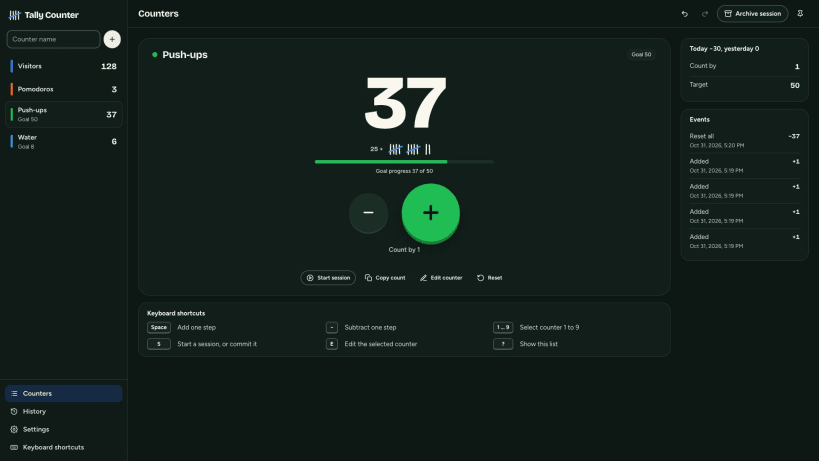
Tally Counter: Multi Clicker lets you track multiple counts on your Windows 10/11 or Linux desktop. Add any number of named counters to the sidebar, give each a color, and add a note when you need one. The desktop app is free, no ads, with no account or in-app purchases.
Use the big plus and minus buttons to count. Your current number appears in large type and as tally marks grouped in fives. Set a step of 1, 5, 10, or any other amount. You can also set a goal with a progress bar and get a notification when you reach it while the window is in the background. Optional lower and upper limits stop the count at the value you choose.
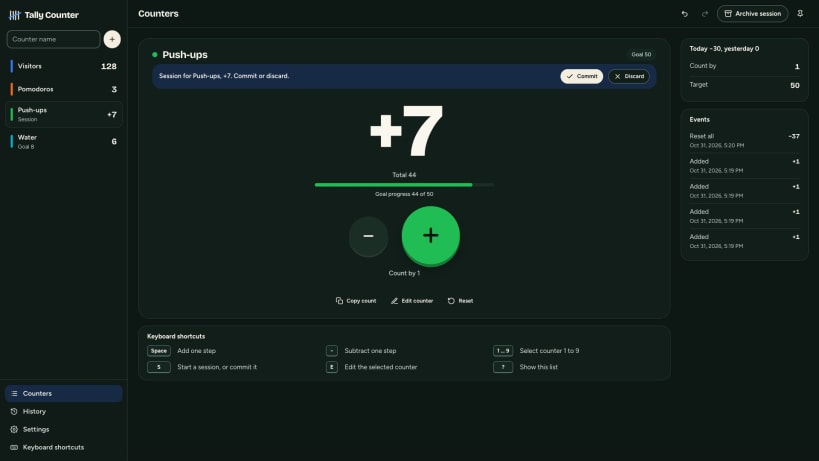
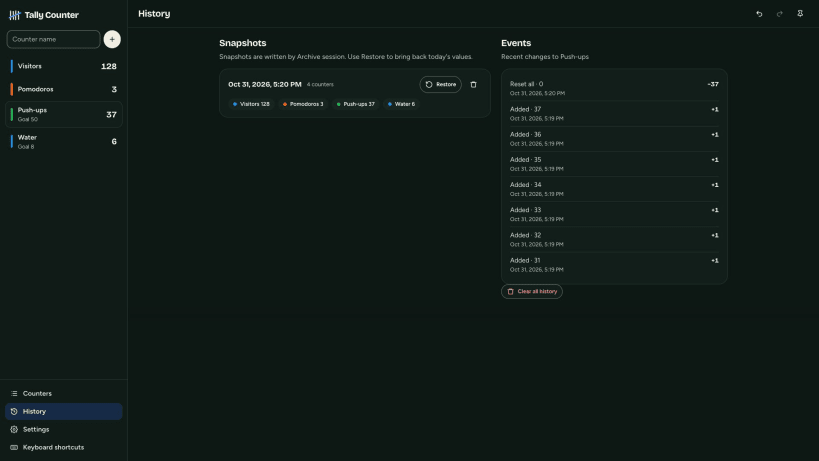
• Count workout reps, laps, visitors, stock, knitting rows, birds, or game points. • Start a temporary session, then add its count to your counter or discard it. • Archive a snapshot of every counter and reset them to zero. Restore a snapshot later from History. • Undo or redo changes. Rapid taps count as one undo step. Check each counter’s event log and its today and yesterday totals. • Export counters or counters with full history to CSV. Import CSV files using the same columns as the separate iPhone app, so you can move counters between phone and computer.
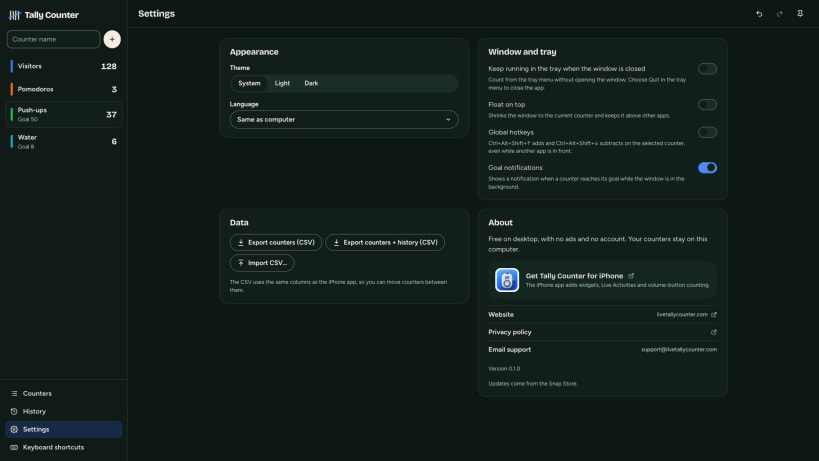
Count from the keyboard: Space or + adds, - subtracts, 1–9 switches counters, S starts or commits a session, and Ctrl+Z undoes a change. Optional global hotkeys let you add or subtract while another app is in front. You can also count from the system tray menu, keep the app running in the tray after closing its window, or show the current counter in a small always-on-top window.
Choose a light or dark theme and an interface in one of 16 languages. Your counters stay on this computer; nothing is uploaded. The Microsoft Store and Snap Store editions never connect to the internet. Published by Indragni Solutions. Visit livetallycounter.com.
You are about to open
Do you wish to proceed?
Thank you for your report. Information you provided will help us investigate further.
There was an error while sending your report. Please try again later.
Snaps are applications packaged with all their dependencies to run on all popular Linux distributions from a single build. They update automatically and roll back gracefully.
Snaps are discoverable and installable from the Snap Store, an app store with an audience of millions.
Snap can be installed from the command line on openSUSE Leap 15.x and Tumbleweed.
You need first add the snappy repository from the terminal. Choose the appropriate command depending on your installed openSUSE flavor.
Tumbleweed:
sudo zypper addrepo --refresh https://download.opensuse.org/repositories/system:/snappy/openSUSE_Tumbleweed snappy
Leap 15.x:
sudo zypper addrepo --refresh https://download.opensuse.org/repositories/system:/snappy/openSUSE_Leap_15.6 snappy
If needed, Swap out openSUSE_Leap_15. for, openSUSE_Leap_16.0 if you’re using a different version of openSUSE.
With the repository added, import its GPG key:
sudo zypper --gpg-auto-import-keys refresh
Finally, upgrade the package cache to include the new snappy repository:
sudo zypper dup --from snappy
Snap can now be installed with the following:
sudo zypper install snapd
You then need to either reboot, logout/login or source /etc/profile to have /snap/bin added to PATH.
Additionally, enable and start both the snapd and the snapd.apparmor services with the following commands:
sudo systemctl enable --now snapd
sudo systemctl enable --now snapd.apparmor
To install Tally Counter: Multi Clicker, simply use the following command:
sudo snap install tally-counter
Browse and find snaps from the convenience of your desktop using the snap store snap.
Interested to find out more about snaps? Want to publish your own application? Visit snapcraft.io now.