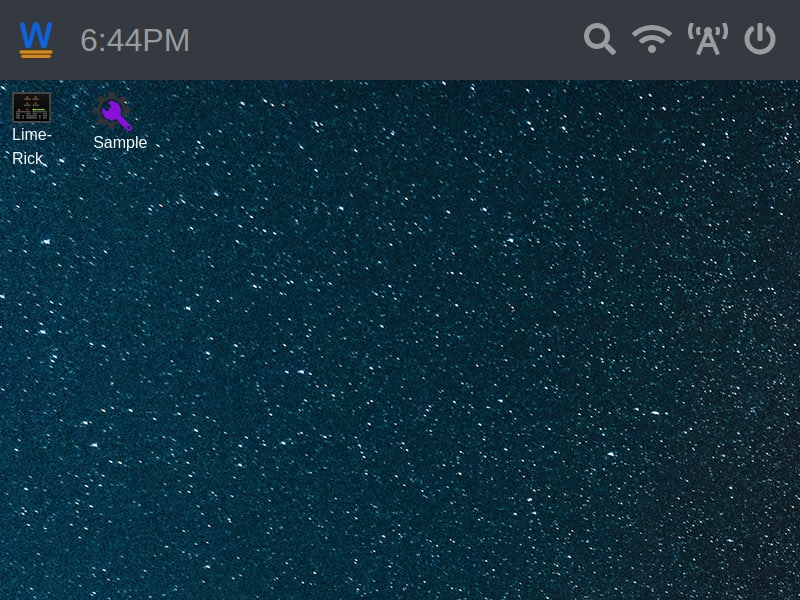
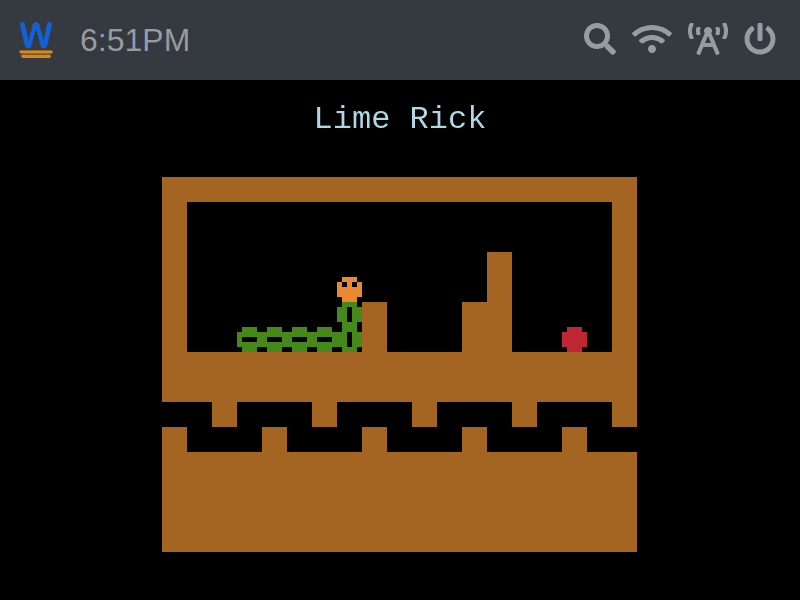
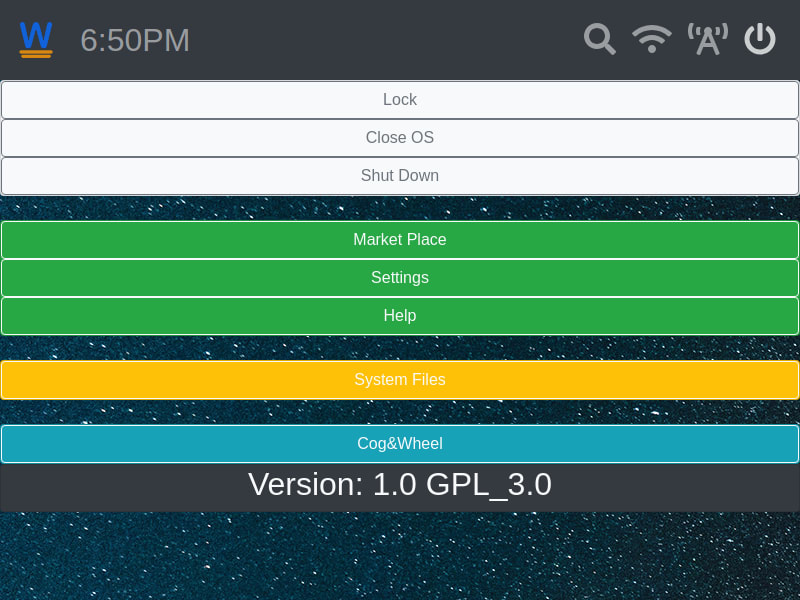


WebDesktop OS GUI is the easy way to make desktop apps with web languages and nothing else!
Installing apps is as easy. All you need to do is unzip the app in this folder Documents/wdOS/App/
With WebDesktop you can broadcast a website or files on your local network or over the internet with router configurations. (You may need to play with firewall settings)
WebDesktop even comes with a very basic web browser.(not currently in mac addition)
** Many more update and a marketplace for apps will becoming in the near future!
To build an app:
or do it automatically by going to settings and clicking "Make an App".
You are about to open
Do you wish to proceed?
Thank you for your report. Information you provided will help us investigate further.
There was an error while sending your report. Please try again later.
Snaps are applications packaged with all their dependencies to run on all popular Linux distributions from a single build. They update automatically and roll back gracefully.
Snaps are discoverable and installable from the Snap Store, an app store with an audience of millions.
On Arch Linux, snap can be installed from the Arch User Repository (AUR). The manual build process is the Arch-supported install method for AUR packages, and you’ll need the prerequisites installed before you can install any AUR package. You can then install snap with the following:
git clone https://aur.archlinux.org/snapd.git
cd snapd
makepkg -si
Once installed, the systemd unit that manages the main snap communication socket needs to be enabled:
sudo systemctl enable --now snapd.socket
If AppArmor is enabled in your system, enable the service which loads AppArmor profiles for snaps:
sudo systemctl enable --now snapd.apparmor.service
To enable classic snap support, enter the following to create a symbolic link between /var/lib/snapd/snap and /snap:
sudo ln -s /var/lib/snapd/snap /snap
Either log out and back in again, or restart your system, to ensure snap’s paths are updated correctly.
To install wdos, simply use the following command:
sudo snap install wdos
Browse and find snaps from the convenience of your desktop using the snap store snap.

Interested to find out more about snaps? Want to publish your own application? Visit snapcraft.io now.