A Linux X11 alternative to WindowTop. Independent open-source project, not affiliated with or endorsed by BiGilSoft.
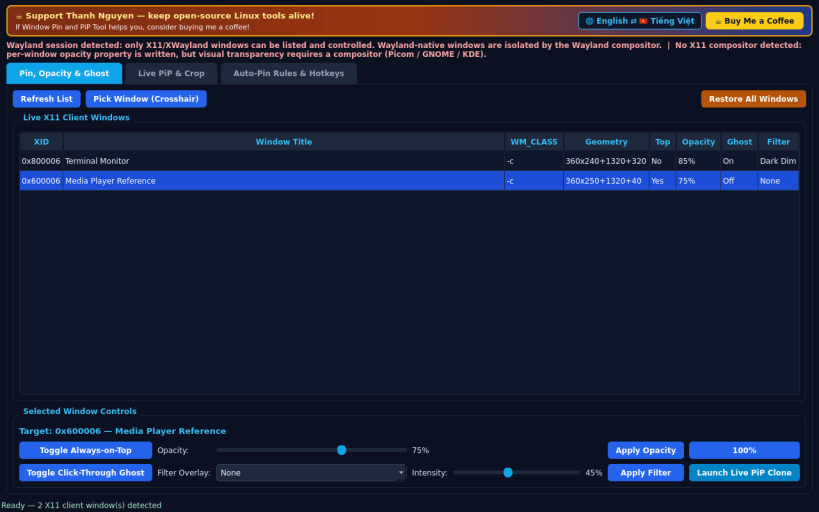
Window enumeration, Always-on-Top (_NET_WM_STATE_ABOVE), window opacity, XShape input click-through, and live Picture-in-Picture capture operate on X11 and XWayland windows; Wayland-native windows cannot be controlled by external X11 clients, and an X11 compositor is required for per-window alpha transparency.
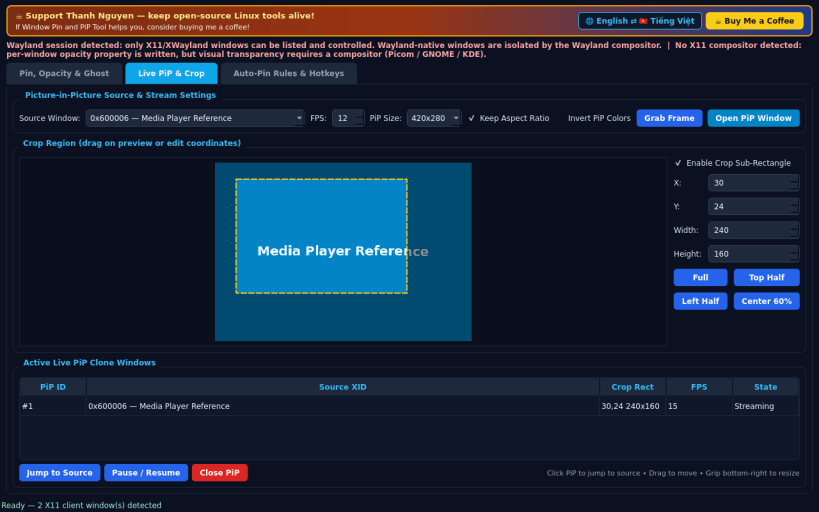
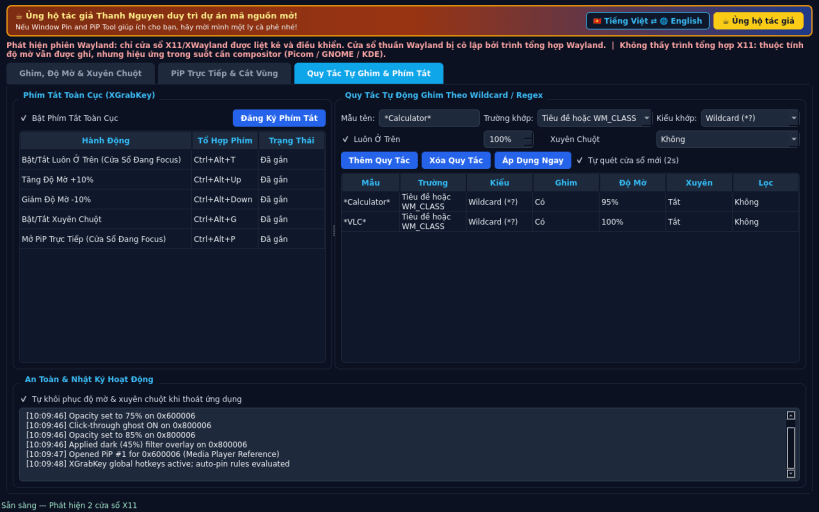
FEATURES • Always-on-Top, Opacity & Click-Through Ghost Mode: inspect live X11 windows, toggle _NET_WM_STATE_ABOVE, set _NET_WM_WINDOW_OPACITY (25%-100%), toggle XShape input click-through, and apply translucent Dark / Night / Warm / Invert tint overlays. • Live Picture-in-Picture (PiP) Clone & Crop: spawn resizable frameless Always-on-Top PiP windows streaming live QScreen.grabWindow captures at 5-20 FPS with full-window or custom crop-rectangle selection and click-to-jump back to the source window. • Auto-Pin Rules & Global Hotkeys: assign XGrabKey global shortcuts and persistent wildcard/regex title or WM_CLASS rules, with automatic opacity and click-through restoration when exiting.
SUPPORT & DONATE • Created by Thanh Nguyen — https://buymeacoffee.com/thanhnv128b
You are about to open
Do you wish to proceed?
Thank you for your report. Information you provided will help us investigate further.
There was an error while sending your report. Please try again later.
Snaps are applications packaged with all their dependencies to run on all popular Linux distributions from a single build. They update automatically and roll back gracefully.
Snaps are discoverable and installable from the Snap Store, an app store with an audience of millions.
If you’re running Ubuntu 16.04 LTS (Xenial Xerus) or later, including Ubuntu 18.04 LTS (Bionic Beaver) and Ubuntu 20.04 LTS (Focal Fossa), you don’t need to do anything. Snap is already installed and ready to go.
For versions of Ubuntu between 14.04 LTS (Trusty Tahr) and 15.10 (Wily Werewolf), as well as Ubuntu flavours that don’t include snap by default, snap can be installed from the Ubuntu Software Centre by searching for snapd.
Alternatively, snapd can be installed from the command line:
sudo apt update
sudo apt install snapd
Either log out and back in again, or restart your system, to ensure snap’s paths are updated correctly.
To install Window Pin and PiP Tool, simply use the following command:
sudo snap install window-pin-pip-tool
Browse and find snaps from the convenience of your desktop using the snap store snap.
Interested to find out more about snaps? Want to publish your own application? Visit snapcraft.io now.