
Easy Linux Game Streaming with OBS
by Alan Pope on 26 September 2019
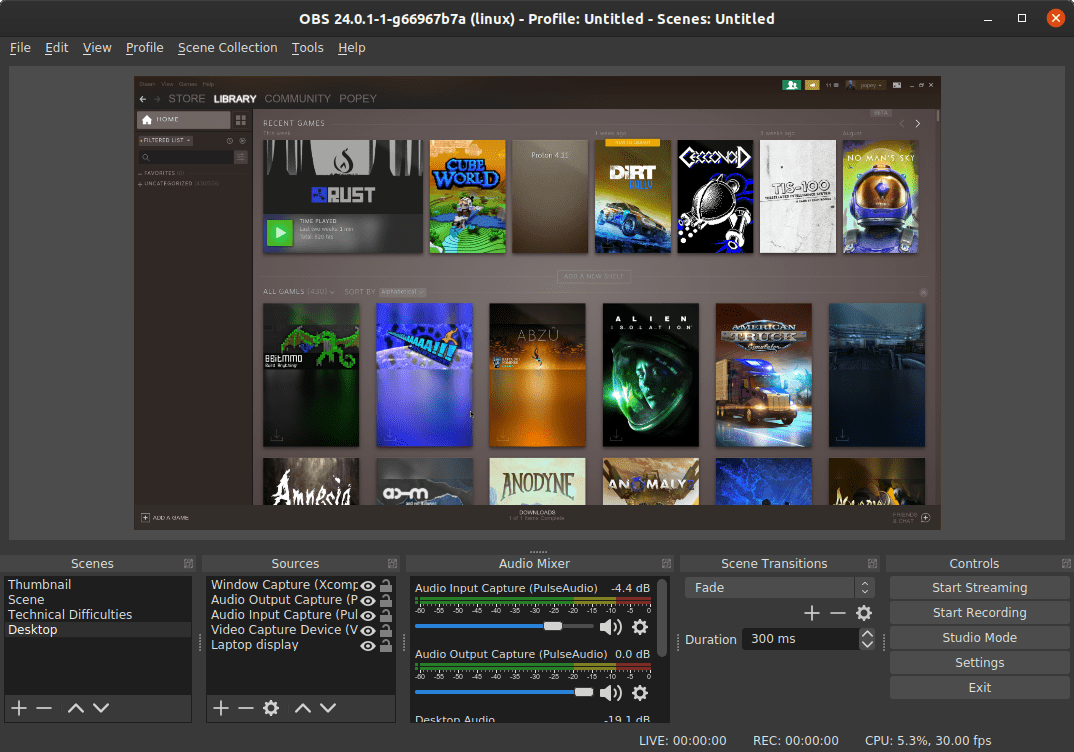
For many, watching other people play games has long taken over from TV as the favoured source of entertainment content. As a creator, whether you stream via YouTube, Twitch.tv or Mixer, Open Broadcast Software (OBS) Studio is the swiss-army knife to do it. The OBS snap makes this a breeze, whichever Linux distro you’re playing on, and simplifies hardware-accelerated video encoding. Let’s take a look at the setup.
Drivers be driving
Put that NeoMagic and 3dfx Voodoo2 away, and bust out your gaming rig! As with other platforms, grabbing the latest video driver for your card is a good place to start. Whether you’re on team red or green, getting the latest video drivers on Linux has recently become a lot easier.
Rolling distros based on Arch Linux, such as Manjaro, have up to date builds for nVidia, AMD and Intel users alike. Users of those distros can be confident they’re up to date by following the comprehensive Arch Wiki https://wiki.archlinux.org/index.php/Category:Graphics
Those on Ubuntu-based distributions built on 18.04 Long Term Support (LTS) and newer, can get their driver fix directly from the Ubuntu repositories. The ubuntu-drivers autoinstall command makes it easy to get the latest and greatest driver from the official archives
The Kernel of the Matter
Ubuntu LTS users can also optionally grab the Hardware Enablement Stack (HWE), which provides a newer, battle-tested Linux kernel to compliment the freshest X stack and associated libraries. For the full skinny on HWE, check out the wiki https://wiki.ubuntu.com/Kernel/LTSEnablementStack, but this one command should typically be sufficient
sudo apt install --install-recommends linux-generic-hwe-18.04 xserver-xorg-hwe-18.04
OBS in one line
On any system that has support for snaps, obtaining OBS is a simple one-liner:.
sudo snap install obs-studio
That’s it.
If your system is missing snap support, never fear, we have beautiful distribution-specific instructions just for you. Simply follow the links at the bottom of https://snapcraft.io/obs-studio and you’re all set
Enable Encoding Everywhere
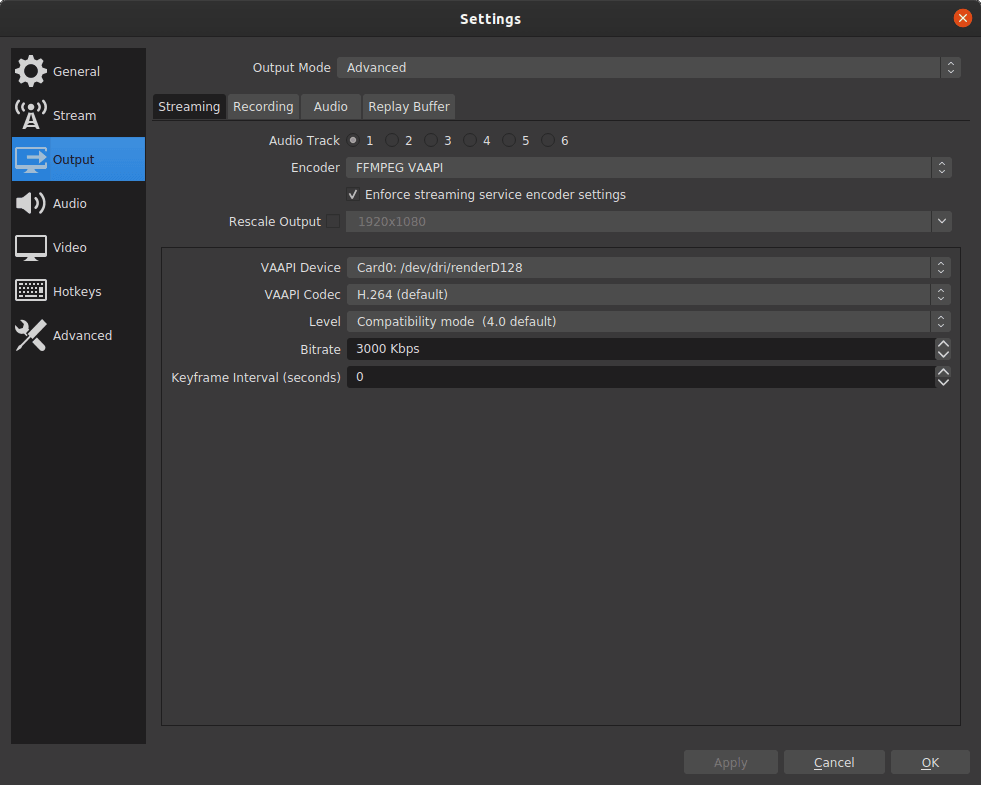
In the OBS settings pane, under the “Output” section, the “Advanced” Output Mode option hides the juicy hardware encoding options. For streamers with Intel based GPUs, enable “FFMPEG VAAPI”. Nvidia users can enable “nvenc”
Going Live
Now you’re all setup and ready to stream! If everything is working correctly, while streaming, take note of the CPU status in the lower-right of the OBS window. The CPU utilisation percentage should be significantly lower than when using software encoding.
We welcome snap-specific issues over on the github issue tracker for the OBS snap, and wider discussion on our friendly snapcraft forum. Happy streaming!