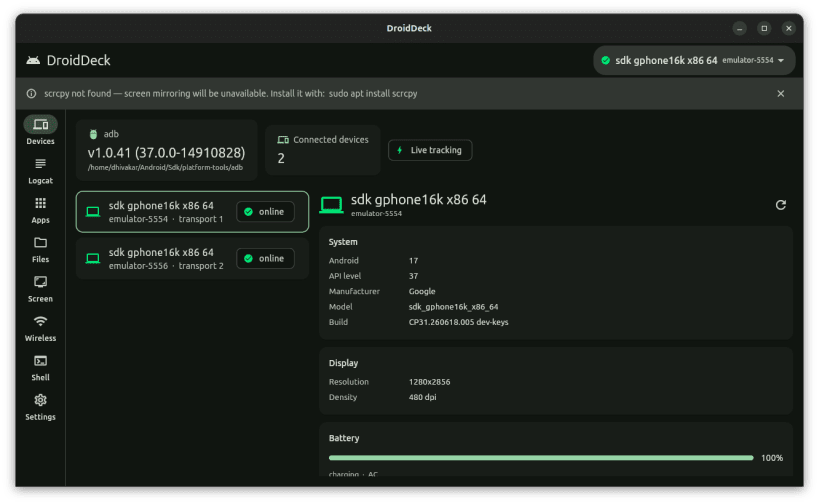
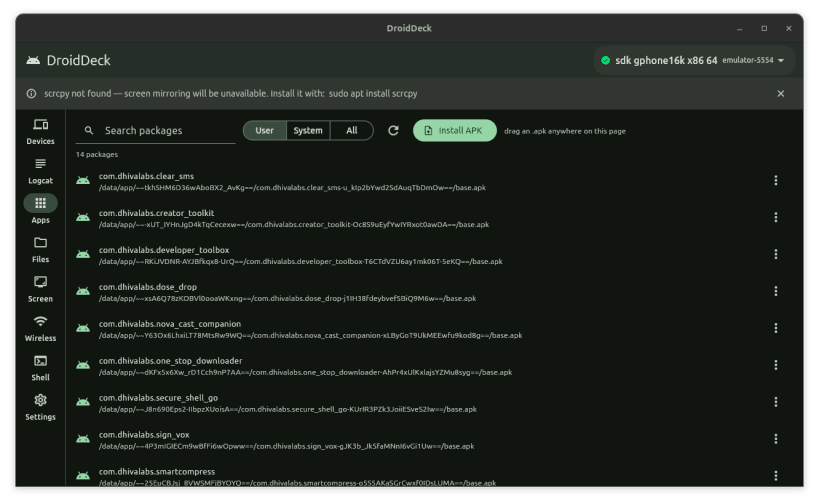
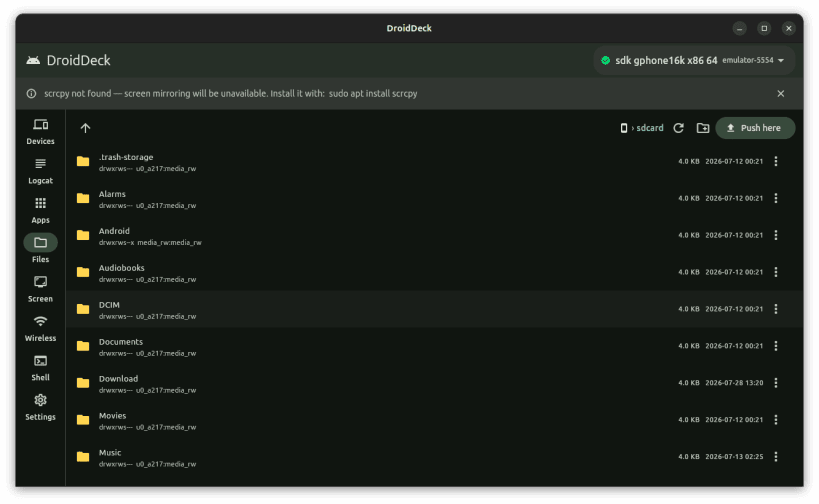
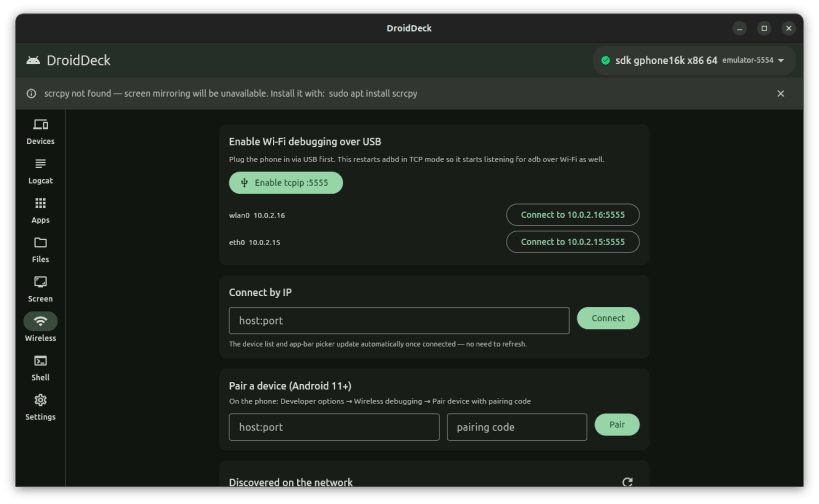
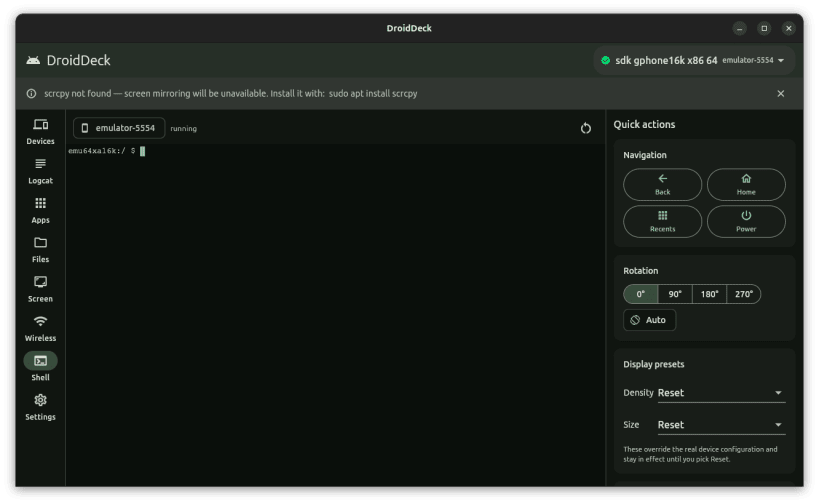
DroidDeck is a Linux desktop GUI around adb: a live device dashboard, logcat viewer, app manager, device file explorer, screen tools, wireless debugging and a real interactive shell, for the things you reach for constantly while shipping an Android app.
Features include live device tracking with Android version, battery, resolution and IP details; logcat in a 50,000-line ring buffer with priority, tag, text and package filters; an app manager to launch, force-stop, clear, uninstall, install APKs by drag and drop and extract base and split APKs; a device file explorer with drag-and-drop push and checksum-verified pull; screenshots and screen recordings; Android 11+ wireless pairing, tcpip mode and saved devices; and an xterm-style adb shell with a quick-actions grid.
adb ships inside the snap, so nothing else needs installing. As a strictly confined snap it reaches USB devices only through an interface that must be connected once after install:
sudo snap connect adb-deck:adb-support
Then unplug and replug the phone if it was already connected. If it is still not detected, its USB vendor is probably missing from that interface's list; connect the broader one as well:
sudo snap connect adb-deck:raw-usb
Pulled files, screenshots and recordings go to folders in your home directory. To use them on removable drives as well:
sudo snap connect adb-deck:removable-media
Things that differ from a normal install: the phone is asked to authorise this computer separately from any adb you run outside the snap; devices on the network are not discovered automatically, so enter the address and port shown on the phone for wireless debugging; and screen mirroring needs scrcpy, which is not part of this snap.
The adb server keeps running after you close the window. Stop it with
adb-deck.adb kill-server; adb-deck.adb is the same adb the app uses.
A Dhiva Labs project.
You are about to open
Do you wish to proceed?
Thank you for your report. Information you provided will help us investigate further.
There was an error while sending your report. Please try again later.
Snaps are applications packaged with all their dependencies to run on all popular Linux distributions from a single build. They update automatically and roll back gracefully.
Snaps are discoverable and installable from the Snap Store, an app store with an audience of millions.
On Arch Linux, snap can be installed from the Arch User Repository (AUR). The manual build process is the Arch-supported install method for AUR packages, and you’ll need the prerequisites installed before you can install any AUR package. You can then install snap with the following:
git clone https://aur.archlinux.org/snapd.git
cd snapd
makepkg -si
Once installed, the systemd unit that manages the main snap communication socket needs to be enabled:
sudo systemctl enable --now snapd.socket
If AppArmor is enabled in your system, enable the service which loads AppArmor profiles for snaps:
sudo systemctl enable --now snapd.apparmor.service
To enable classic snap support, enter the following to create a symbolic link between /var/lib/snapd/snap and /snap:
sudo ln -s /var/lib/snapd/snap /snap
Either log out and back in again, or restart your system, to ensure snap’s paths are updated correctly.
To install DroidDeck, simply use the following command:
sudo snap install adb-deck

Browse and find snaps from the convenience of your desktop using the snap store snap.

Interested to find out more about snaps? Want to publish your own application? Visit snapcraft.io now.