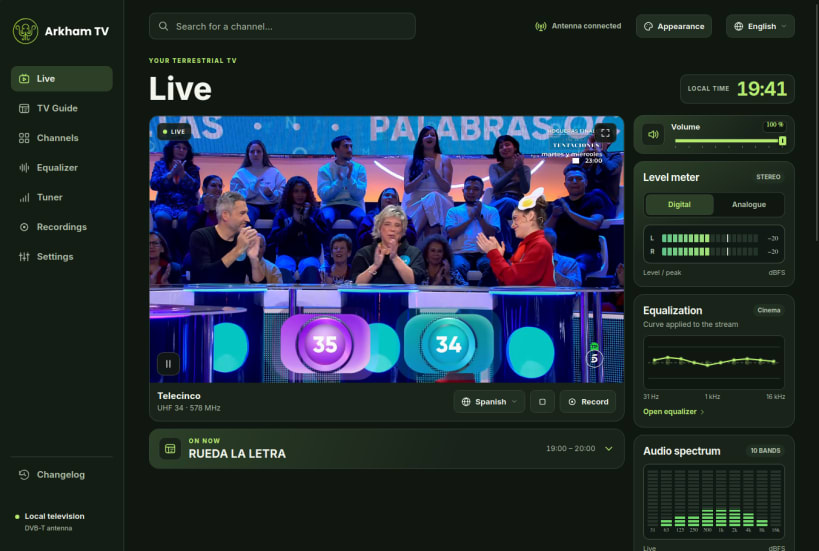
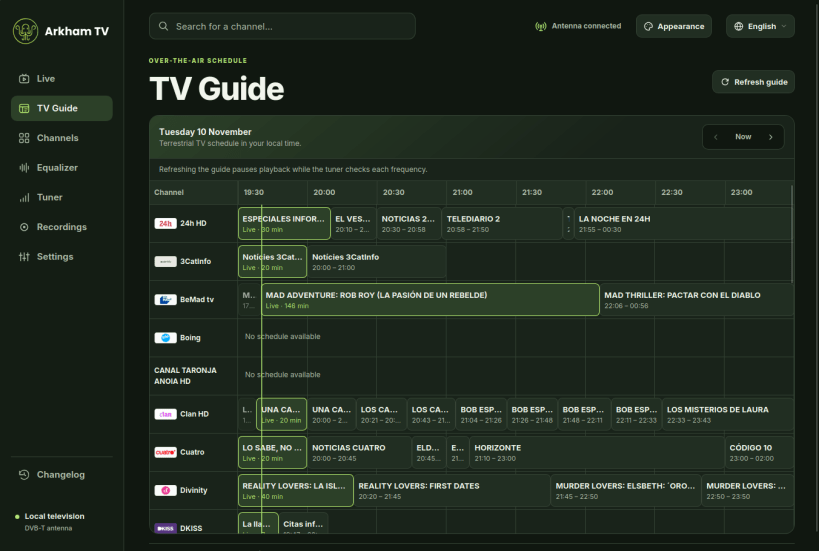
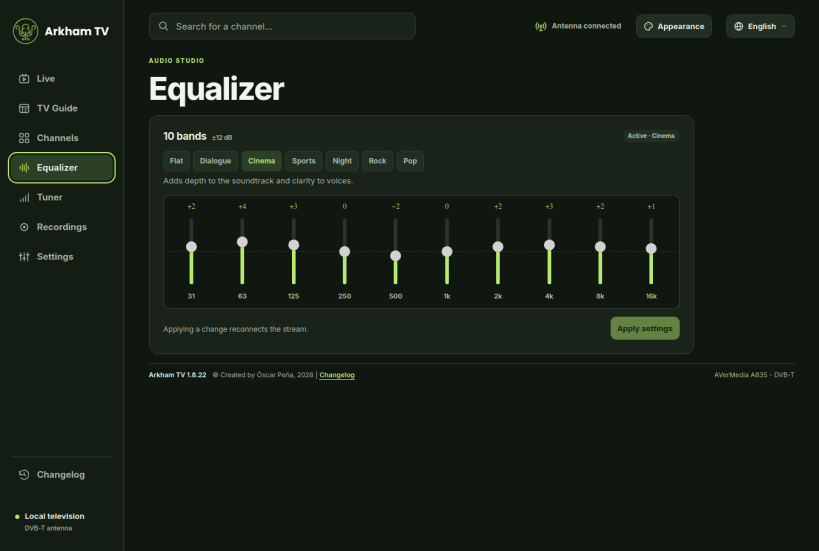
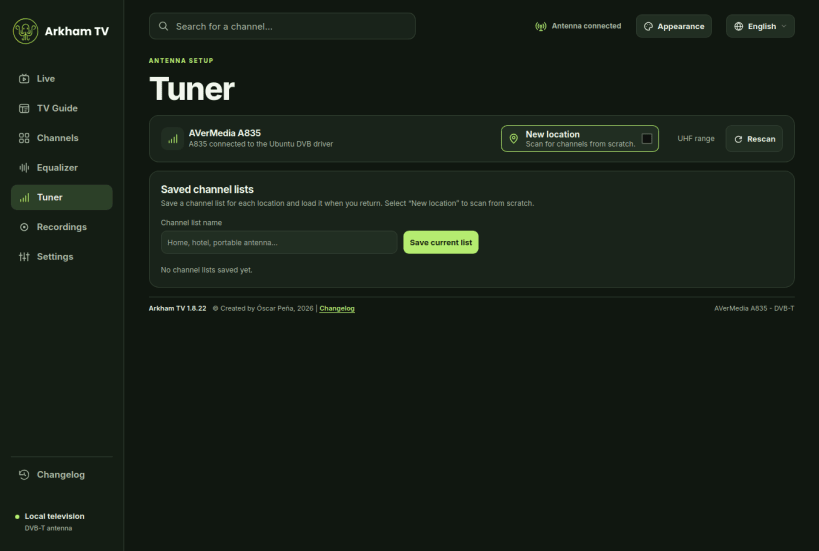
Watch free-to-air digital terrestrial television live and schedule recordings on Ubuntu. Plug a supported AVerMedia AVerTV Volar HD USB tuner into your computer, connect an antenna to the tuner and scan for the channels available in your area.
Hardware and system requirements
Arkham TV supports only the AVerMedia A835 and A835B for DVB-T reception. Ubuntu must recognise the tuner through its DVB driver. The Snap includes playback codecs and is available for 64-bit Intel and AMD computers and ARM64.
Watch and browse
Record to your computer
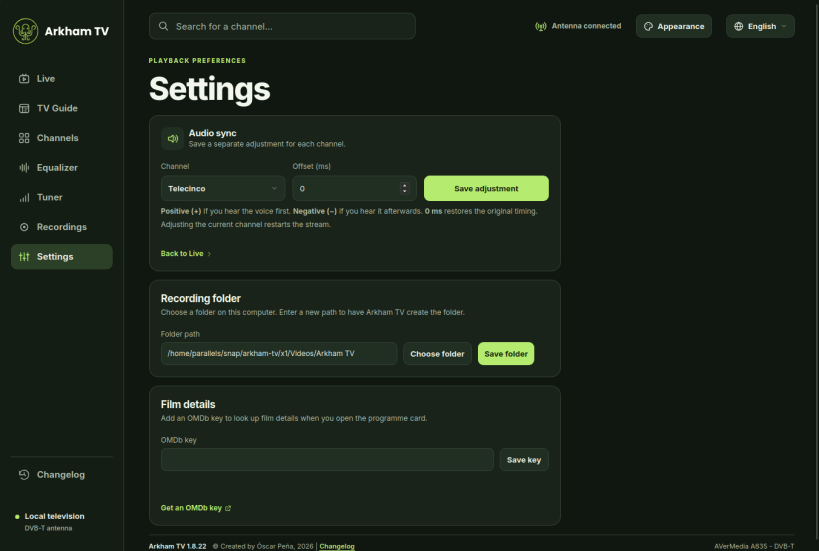
Record the current broadcast or schedule one from the TV Guide. Choose or create a destination folder in Settings. Recordings are saved locally as MP4 files with 1080p video and AAC stereo audio. Open, manage and play your recordings from the app. For scheduled recordings, keep Arkham TV open and the computer awake.
English and Spanish
Switch the interface and changelog from the language menu. Channel names and programme descriptions are shown as supplied by the broadcaster.
Developed by Óscar Peña de San Antonio, 2026. An avid reader of H.P. Lovecraft, as you might imagine ;-)
Recent changes
1.8.13 - Stereo recordings and channel selection
1.8.12 · A language menu that matches the app
1.8.11 · English and Spanish, with clearer channel quality
Thank you for your report. Information you provided will help us investigate further.
There was an error while sending your report. Please try again later.
Snaps are applications packaged with all their dependencies to run on all popular Linux distributions from a single build. They update automatically and roll back gracefully.
Snaps are discoverable and installable from the Snap Store, an app store with an audience of millions.
Snap is available for CentOS 7.6+, and Red Hat Enterprise Linux 7.6+, from the Extra Packages for Enterprise Linux (EPEL) repository. The EPEL repository can be added to your system with the following command:
sudo yum install epel-release
Snap can now be installed as follows:
sudo yum install snapd
Once installed, the systemd unit that manages the main snap communication socket needs to be enabled:
sudo systemctl enable --now snapd.socket
To enable classic snap support, enter the following to create a symbolic link between /var/lib/snapd/snap and /snap:
sudo ln -s /var/lib/snapd/snap /snap
Either log out and back in again, or restart your system, to ensure snap’s paths are updated correctly.
To install Arkham TV, simply use the following command:
sudo snap install arkham-tv
Browse and find snaps from the convenience of your desktop using the snap store snap.
Interested to find out more about snaps? Want to publish your own application? Visit snapcraft.io now.