Desktop sticky notes that stay visible while you work. Stick images, GIFs,
files, folders, or anything to your desktop. Fast and offline.
New in 1.6.5:
• Dock the hub too: open its menu and choose Dock to Left Edge or Dock
to Right Edge. It becomes a slim rail of its buttons above your side
notes
• Right-click the tab of a side note to move it: Move Up, Move Down, or
to the other edge
• A collapsed note is only as wide as its title
• GNOME: a side note no longer opens invisible
• COSMIC: notes and the hub can be dragged
New in 1.6:
• Side notes: dock a note to the left or right edge of the screen, where
it waits as a slim tab. Click the tab and the note opens
• Archive: put finished notes away without deleting them. They leave
your desktop and stay searchable
• Select words and paste a web address to turn them into a link
• Find in a note with Ctrl+F
• A small toolbar appears over the text you select: strikethrough,
highlight, link and code block
• Settings, redesigned
• Your latest notes in the tray menu
• Larger file icons, a lighter footer and many fixes
Common Use Cases:
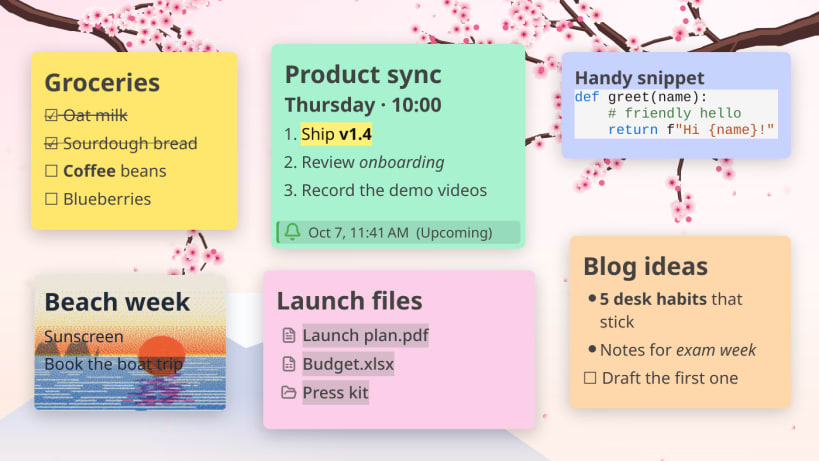
• Stick images & GIFs of loved ones, memes, or decorations
• Organize desktop files and folders into small renamable links
• Keep notes, to-dos and lists always visible above other windows
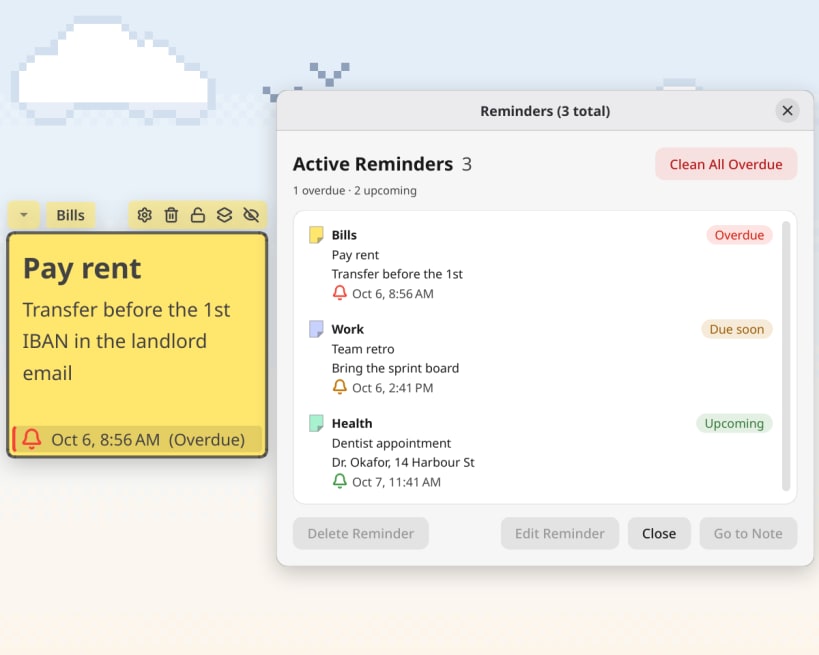
• Set reminders with desktop notifications
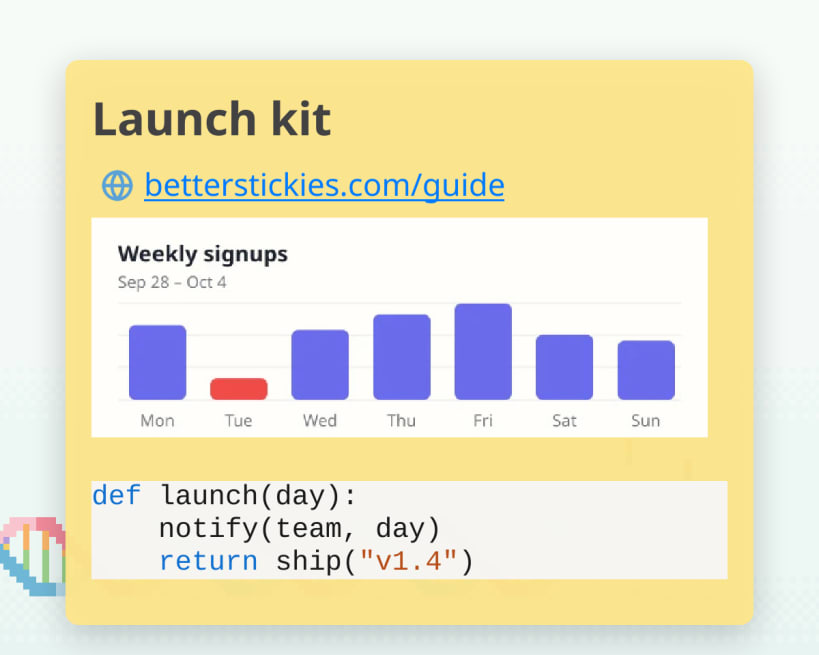
• Paste anything inside notes (text, code, images, files)
Features:
• Up to 3 tabbed pages per note: one window, several sheets
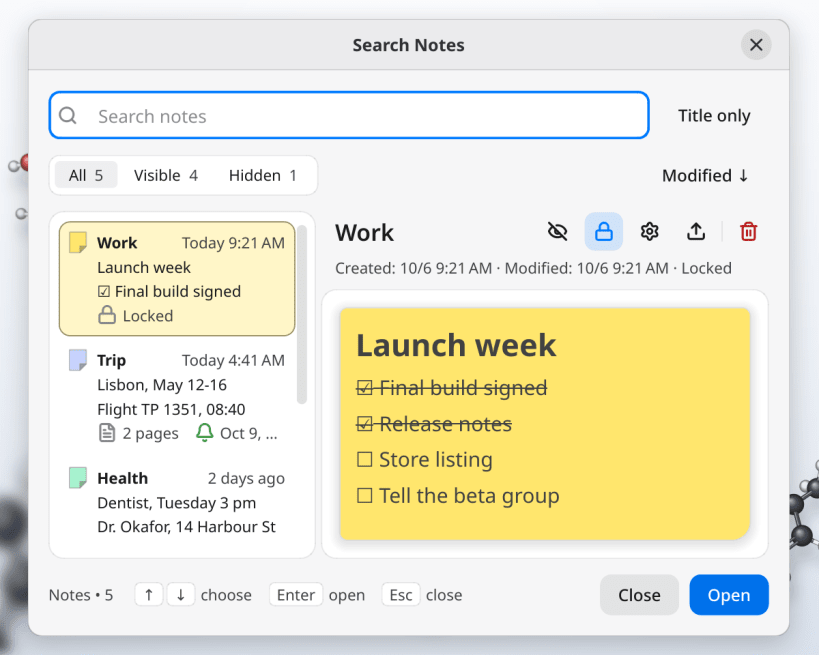
• Search every note and page, hidden ones too, with a live preview
• Reminders with a status strip on the note and an overdue badge
• Fully customizable: font, color, size, background images/GIFs
• Drag files and folders in, rename them, drag them back out
• Hover over images and PDFs to quick preview them, click to enlarge
• Automatic code detection when pasting
• Colored code blocks: comments, strings and keywords, no setting needed
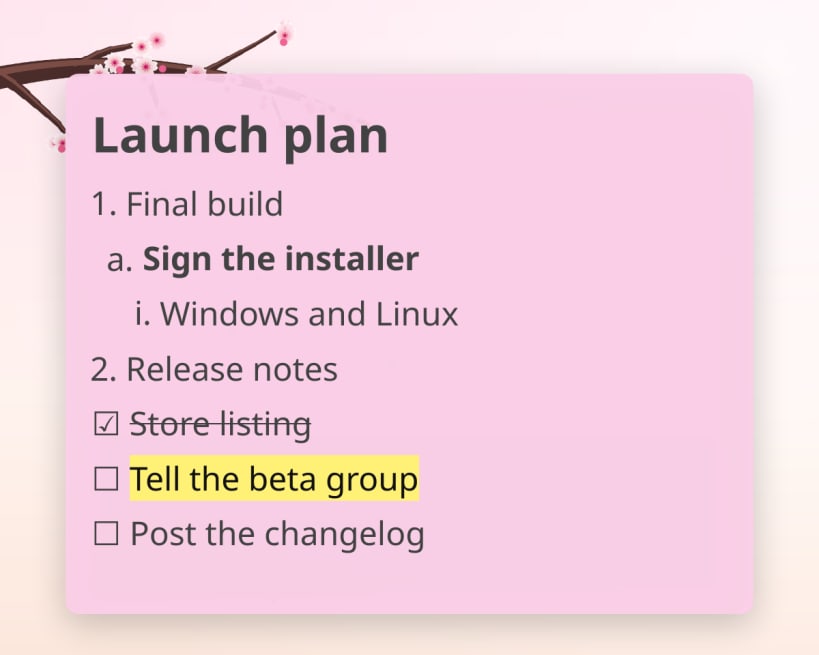
• Checklists, bullet and numbered lists that nest with Tab and Shift+Tab
• Highlight text in six colors; underline with Ctrl+U
• Align lines left, center or right; set each note's text direction
• Snap to grid for organizing stickies on desktop
• Customize the in-app keyboard shortcuts
• Always on top, lock notes to fix their position and content
• Start Better Stickies when you log in
• Export to TXT, Markdown, or JSON, a single note or all of them
• Daily backups of your notes
• 13 languages including Arabic (right to left) and Polish
• CJK input method support (ibus)
• Multi-monitor support
The Snap's sandbox rules out global shortcuts, playing sound clips
inside notes and KDE Activities. The AppImage has all three:
https://betterstickies.com/download
Free version: 4 notes (tabs count toward the limit); every other feature unrestricted. Unlimited notes at https://betterstickies.com/pricing