
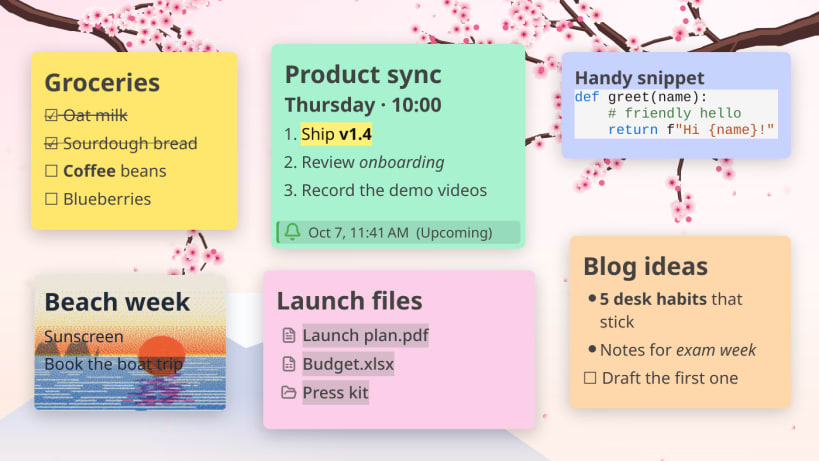
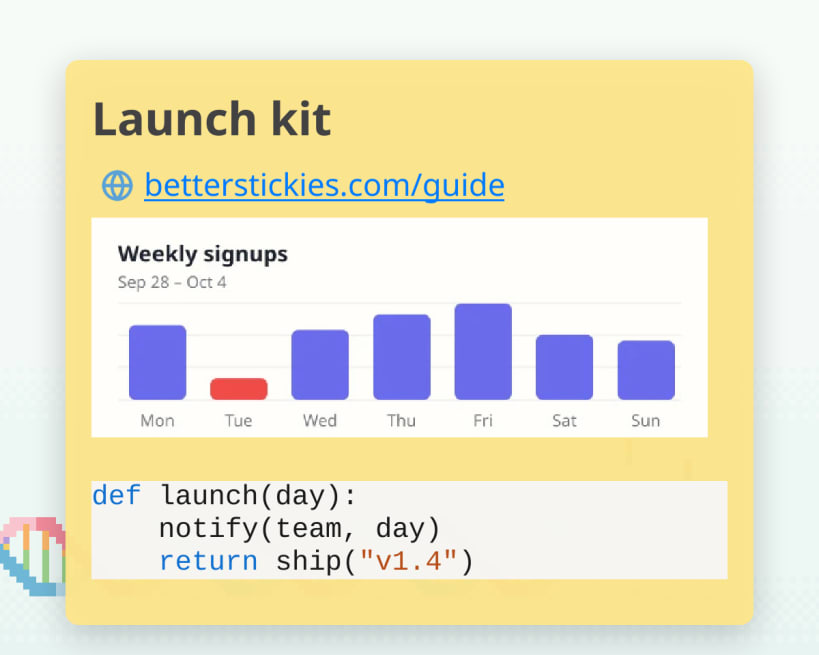
Desktop sticky notes that stay visible while you work. Stick images, GIFs, files, folders, or anything to your desktop. Fast and offline.
New in 1.6.5: • Dock the hub too: open its menu and choose Dock to Left Edge or Dock to Right Edge. It becomes a slim rail of its buttons above your side notes • Right-click the tab of a side note to move it: Move Up, Move Down, or to the other edge • A collapsed note is only as wide as its title • GNOME: a side note no longer opens invisible • COSMIC: notes and the hub can be dragged
New in 1.6: • Side notes: dock a note to the left or right edge of the screen, where it waits as a slim tab. Click the tab and the note opens • Archive: put finished notes away without deleting them. They leave your desktop and stay searchable • Select words and paste a web address to turn them into a link • Find in a note with Ctrl+F • A small toolbar appears over the text you select: strikethrough, highlight, link and code block • Settings, redesigned • Your latest notes in the tray menu • Larger file icons, a lighter footer and many fixes
Common Use Cases: • Stick images & GIFs of loved ones, memes, or decorations • Organize desktop files and folders into small renamable links • Keep notes, to-dos and lists always visible above other windows • Set reminders with desktop notifications • Paste anything inside notes (text, code, images, files)
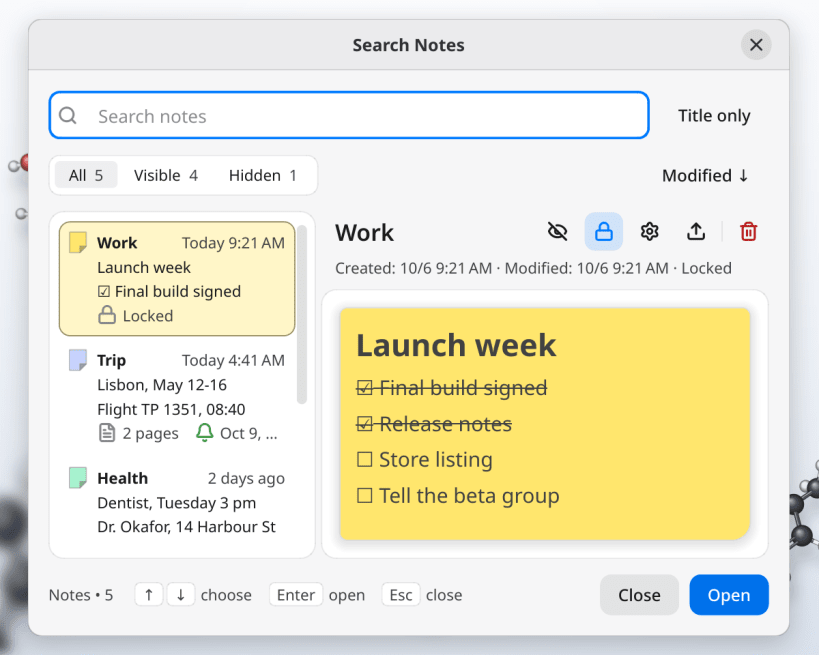
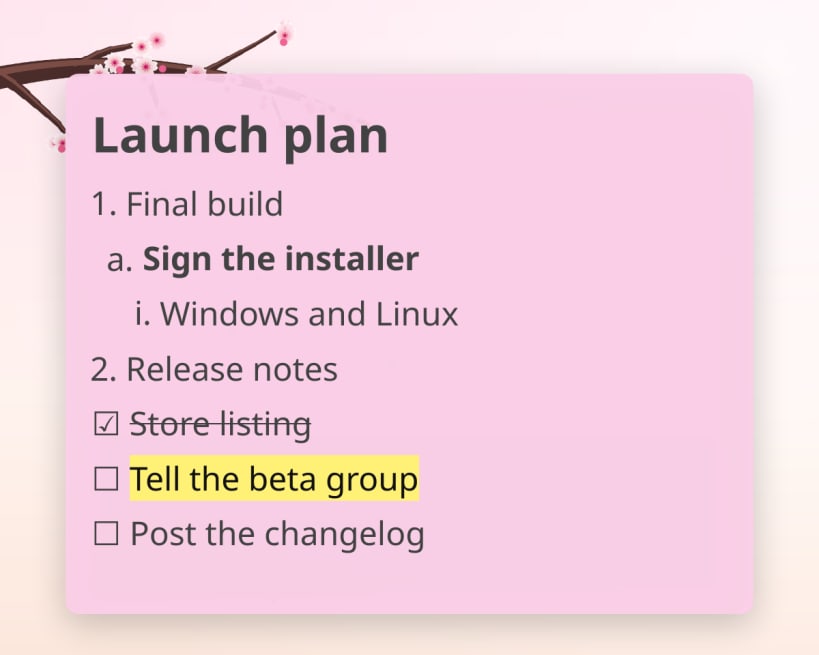
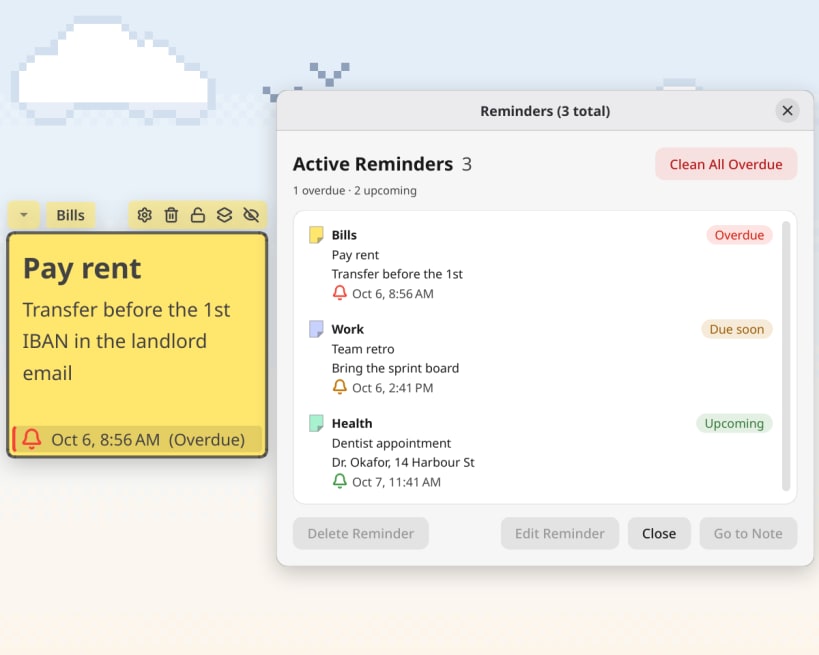
Features: • Up to 3 tabbed pages per note: one window, several sheets • Search every note and page, hidden ones too, with a live preview • Reminders with a status strip on the note and an overdue badge • Fully customizable: font, color, size, background images/GIFs • Drag files and folders in, rename them, drag them back out • Hover over images and PDFs to quick preview them, click to enlarge • Automatic code detection when pasting • Colored code blocks: comments, strings and keywords, no setting needed • Checklists, bullet and numbered lists that nest with Tab and Shift+Tab • Highlight text in six colors; underline with Ctrl+U • Align lines left, center or right; set each note's text direction • Snap to grid for organizing stickies on desktop • Customize the in-app keyboard shortcuts • Always on top, lock notes to fix their position and content • Start Better Stickies when you log in • Export to TXT, Markdown, or JSON, a single note or all of them • Daily backups of your notes • 13 languages including Arabic (right to left) and Polish • CJK input method support (ibus) • Multi-monitor support
The Snap's sandbox rules out global shortcuts, playing sound clips inside notes and KDE Activities. The AppImage has all three: https://betterstickies.com/download
Free version: 4 notes (tabs count toward the limit); every other feature unrestricted. Unlimited notes at https://betterstickies.com/pricing
You are about to open
Do you wish to proceed?
Thank you for your report. Information you provided will help us investigate further.
There was an error while sending your report. Please try again later.
Snaps are applications packaged with all their dependencies to run on all popular Linux distributions from a single build. They update automatically and roll back gracefully.
Snaps are discoverable and installable from the Snap Store, an app store with an audience of millions.
Snap can be installed from the command line on openSUSE Leap 15.x and Tumbleweed.
You need first add the snappy repository from the terminal. Choose the appropriate command depending on your installed openSUSE flavor.
Tumbleweed:
sudo zypper addrepo --refresh https://download.opensuse.org/repositories/system:/snappy/openSUSE_Tumbleweed snappy
Leap 15.x:
sudo zypper addrepo --refresh https://download.opensuse.org/repositories/system:/snappy/openSUSE_Leap_15.6 snappy
If needed, Swap out openSUSE_Leap_15. for, openSUSE_Leap_16.0 if you’re using a different version of openSUSE.
With the repository added, import its GPG key:
sudo zypper --gpg-auto-import-keys refresh
Finally, upgrade the package cache to include the new snappy repository:
sudo zypper dup --from snappy
Snap can now be installed with the following:
sudo zypper install snapd
You then need to either reboot, logout/login or source /etc/profile to have /snap/bin added to PATH.
Additionally, enable and start both the snapd and the snapd.apparmor services with the following commands:
sudo systemctl enable --now snapd
sudo systemctl enable --now snapd.apparmor
To install Better Stickies: Sticky Notes, simply use the following command:
sudo snap install betterstickies

Browse and find snaps from the convenience of your desktop using the snap store snap.

Interested to find out more about snaps? Want to publish your own application? Visit snapcraft.io now.