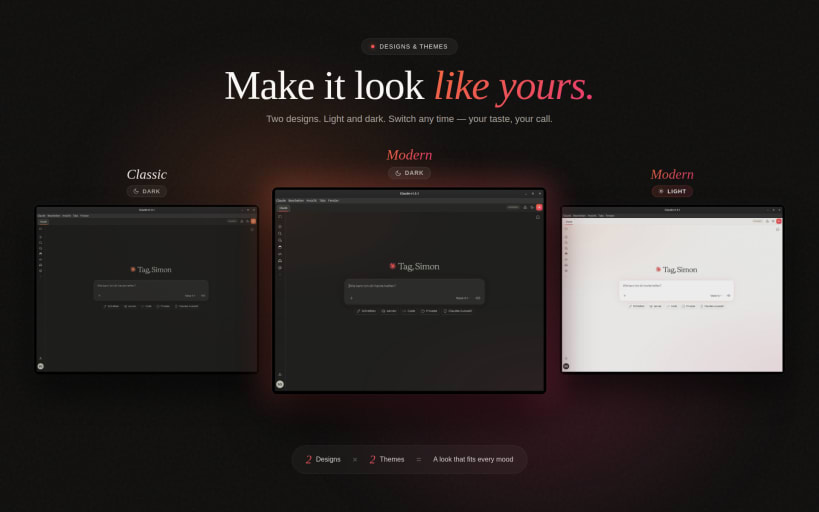

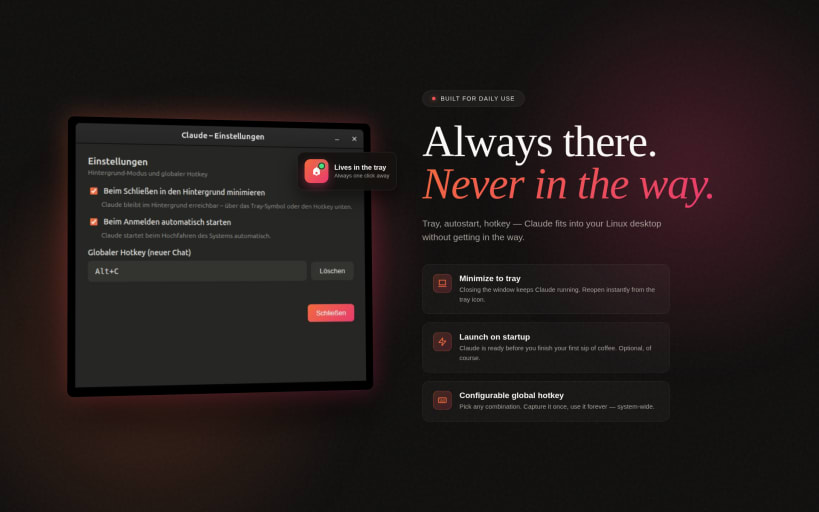
Desktop for Claude is a fast desktop app for Claude AI - no browser needed. Use Claude directly from your desktop, distraction-free and always at hand.
There is an official Claude app for Linux. Anthropic ships one since 30 June 2026 for Ubuntu 22.04+ and Debian 12+ from their own apt repository, including Cowork and Claude Code. If that fits your system, use it: https://code.claude.com/docs/en/desktop-linux
This app is not discontinued. Updates and fixes keep coming, new features less often than before. It also remains the option on Ubuntu 20.04, which the official app does not support, and here in the Snap Store, where there is no official package. The install guide for the official app is built into the menu.
If you are using a VPN, activate split tunnelling for this app.
Features:
Snap permissions:
For voice input, connect the audio-record interface once:
sudo snap connect claude-ai-desktop:audio-record
For attaching and saving files outside your home folder (external drives, /media):
sudo snap connect claude-ai-desktop:removable-media
The in-app wizard guides you through the microphone permission on first use.
Get in touch:
Use the built-in "Report a Bug" button (App Menu, Report a Bug) for feedback and bug reports, or write to simonlinuxcraft@pm.me. That address reaches the developer, not Anthropic support.
Source code: https://github.com/simonlinuxcraft/claude-ai-desktop-app (MIT licence)
Not affiliated with Anthropic.
This is an unofficial community wrapper around claude.ai for Linux. It is not made by, endorsed by, or affiliated with Anthropic PBC. "Claude" and the Claude logo are trademarks of Anthropic PBC. For account, login, subscription, billing or any service-side questions please contact Anthropic directly at https://support.anthropic.com
You are about to open
Do you wish to proceed?
Thank you for your report. Information you provided will help us investigate further.
There was an error while sending your report. Please try again later.
Snaps are applications packaged with all their dependencies to run on all popular Linux distributions from a single build. They update automatically and roll back gracefully.
Snaps are discoverable and installable from the Snap Store, an app store with an audience of millions.
Snap can be installed from the command line on openSUSE Leap 15.x and Tumbleweed.
You need first add the snappy repository from the terminal. Choose the appropriate command depending on your installed openSUSE flavor.
Tumbleweed:
sudo zypper addrepo --refresh https://download.opensuse.org/repositories/system:/snappy/openSUSE_Tumbleweed snappy
Leap 15.x:
sudo zypper addrepo --refresh https://download.opensuse.org/repositories/system:/snappy/openSUSE_Leap_15.6 snappy
If needed, Swap out openSUSE_Leap_15. for, openSUSE_Leap_16.0 if you’re using a different version of openSUSE.
With the repository added, import its GPG key:
sudo zypper --gpg-auto-import-keys refresh
Finally, upgrade the package cache to include the new snappy repository:
sudo zypper dup --from snappy
Snap can now be installed with the following:
sudo zypper install snapd
You then need to either reboot, logout/login or source /etc/profile to have /snap/bin added to PATH.
Additionally, enable and start both the snapd and the snapd.apparmor services with the following commands:
sudo systemctl enable --now snapd
sudo systemctl enable --now snapd.apparmor
To install Desktop for Claude (Unofficial), simply use the following command:
sudo snap install claude-ai-desktop
Browse and find snaps from the convenience of your desktop using the snap store snap.

Interested to find out more about snaps? Want to publish your own application? Visit snapcraft.io now.