Clipboard Format Tool shows exactly what is on your Linux clipboard and lets you save, restore and reshape it. A Linux alternative to CLCL. Not affiliated with or endorsed by Nakka / CLCL.
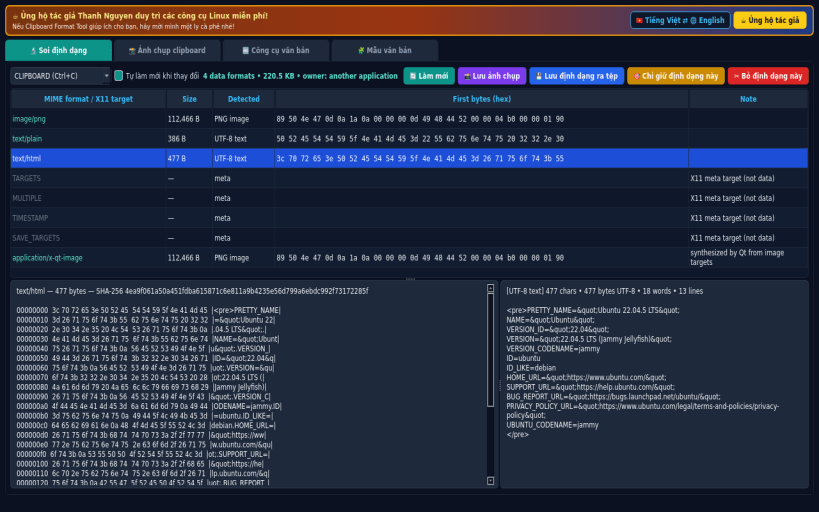
FORMAT INSPECTOR • Lists every MIME format/X11 target currently offered on the CLIPBOARD or PRIMARY selection, with byte size, detected type, first bytes and a full hex dump. • Decoded text view (UTF-8/UTF-16) and image preview for PNG/JPEG/BMP/GIF data. • Save any single format to a file, keep only one format, or remove one format.
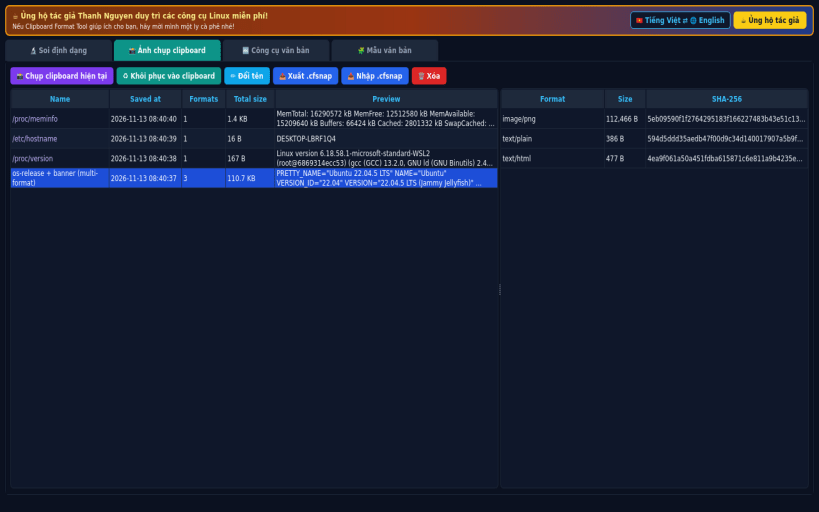
SNAPSHOTS • Save the complete multi-format clipboard (all formats, raw bytes) to a local SQLite database and restore it later with every format intact. • Export/import snapshots as .cfsnap zip files with SHA-256 checked manifest.
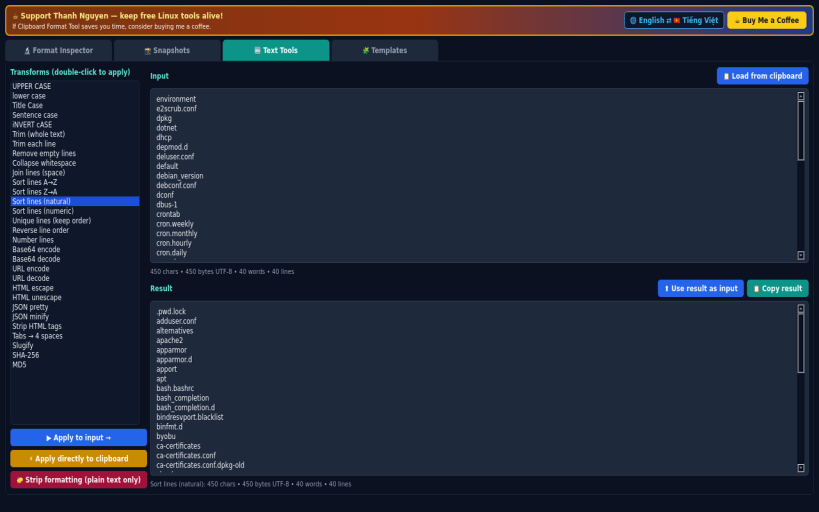
TEXT TOOLS • 30 transforms: case changes, trim, remove empty lines, sort (A-Z, natural, numeric), unique, reverse, number lines, Base64 and URL encode/decode, HTML escape, JSON pretty/minify, strip HTML, slugify, SHA-256/MD5 — on an editor or directly on the live clipboard. "Strip formatting" leaves plain text only.
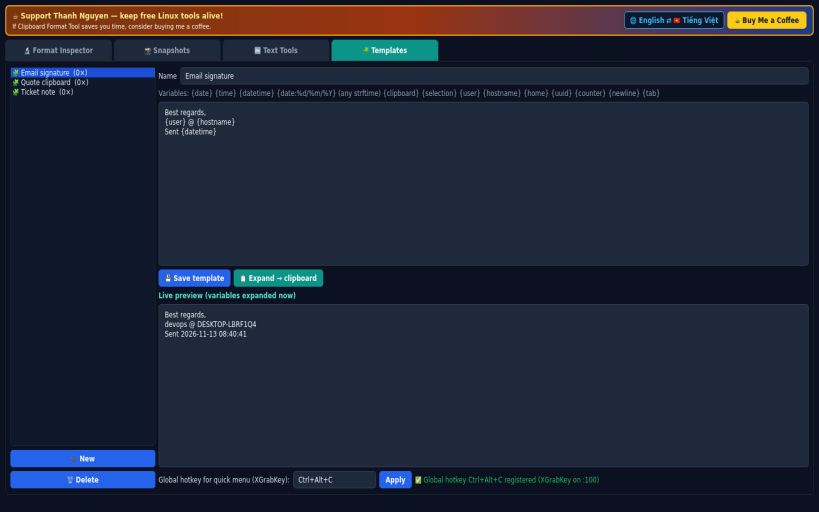
TEMPLATES • Snippets with variables: {date} {time} {datetime} {date:%d/%m/%Y} {clipboard} {selection} {user} {hostname} {home} {uuid} {counter}. • Tray menu and a global-hotkey quick menu (XGrabKey, default Ctrl+Alt+C) with templates, transforms and snapshots.
LIMITATIONS (honest) • Designed for X11. Under Wayland it works via XWayland; the global hotkey only works on X11 sessions. The tray icon needs a desktop with a system tray. • When the app that owns the clipboard quits, X11 drops its data — save a snapshot first.
SUPPORT & DONATE: https://buymeacoffee.com/thanhnv128b
You are about to open
Do you wish to proceed?
Thank you for your report. Information you provided will help us investigate further.
There was an error while sending your report. Please try again later.
Snaps are applications packaged with all their dependencies to run on all popular Linux distributions from a single build. They update automatically and roll back gracefully.
Snaps are discoverable and installable from the Snap Store, an app store with an audience of millions.
Snap can be installed from the command line on openSUSE Leap 15.x and Tumbleweed.
You need first add the snappy repository from the terminal. Choose the appropriate command depending on your installed openSUSE flavor.
Tumbleweed:
sudo zypper addrepo --refresh https://download.opensuse.org/repositories/system:/snappy/openSUSE_Tumbleweed snappy
Leap 15.x:
sudo zypper addrepo --refresh https://download.opensuse.org/repositories/system:/snappy/openSUSE_Leap_15.6 snappy
If needed, Swap out openSUSE_Leap_15. for, openSUSE_Leap_16.0 if you’re using a different version of openSUSE.
With the repository added, import its GPG key:
sudo zypper --gpg-auto-import-keys refresh
Finally, upgrade the package cache to include the new snappy repository:
sudo zypper dup --from snappy
Snap can now be installed with the following:
sudo zypper install snapd
You then need to either reboot, logout/login or source /etc/profile to have /snap/bin added to PATH.
Additionally, enable and start both the snapd and the snapd.apparmor services with the following commands:
sudo systemctl enable --now snapd
sudo systemctl enable --now snapd.apparmor
To install Clipboard Format Tool, simply use the following command:
sudo snap install clipboard-format-tool
Browse and find snaps from the convenience of your desktop using the snap store snap.
Interested to find out more about snaps? Want to publish your own application? Visit snapcraft.io now.