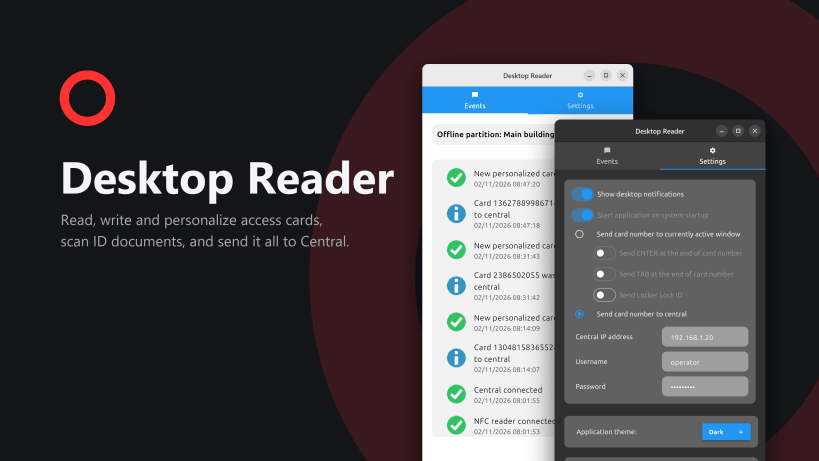
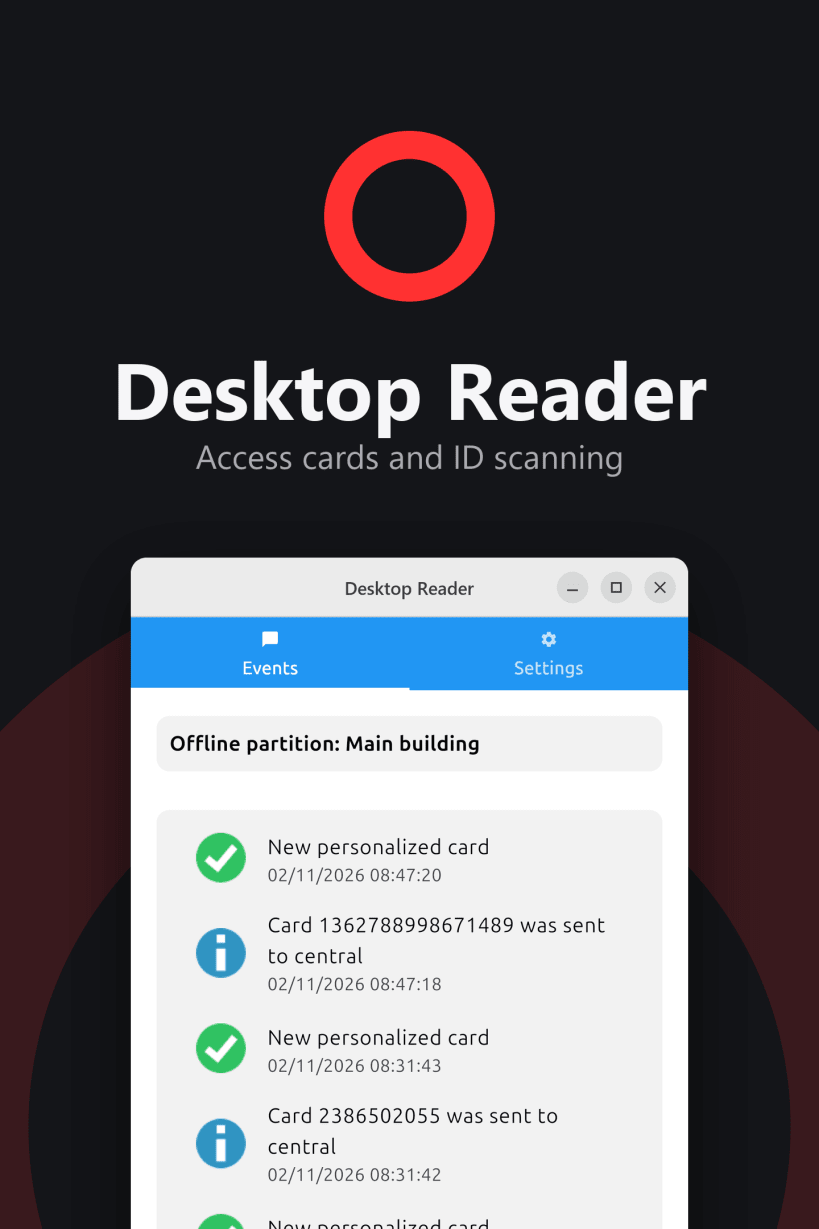
Desktop Reader connects an NFC USB card reader on your Windows PC to your Prima access control Central.
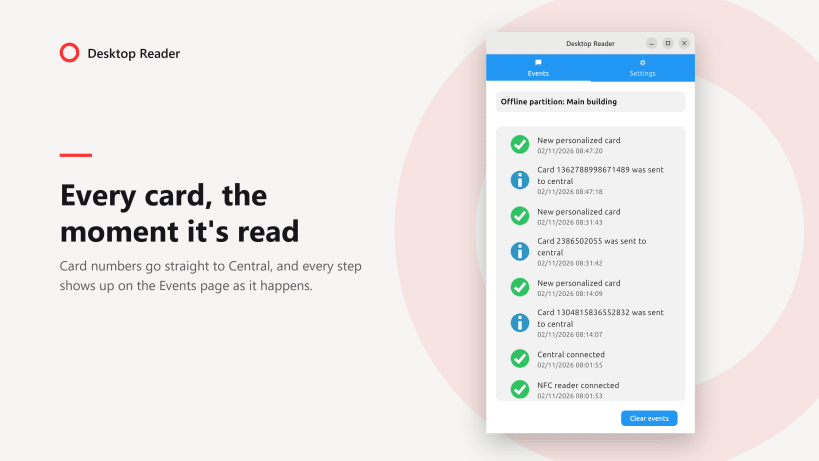
Plug in the reader and Desktop Reader finds it automatically. When a card is presented, its number goes straight to Central, and new cards are personalized on the spot. Every step shows up on the Events page and, if you want, as a Windows notification.
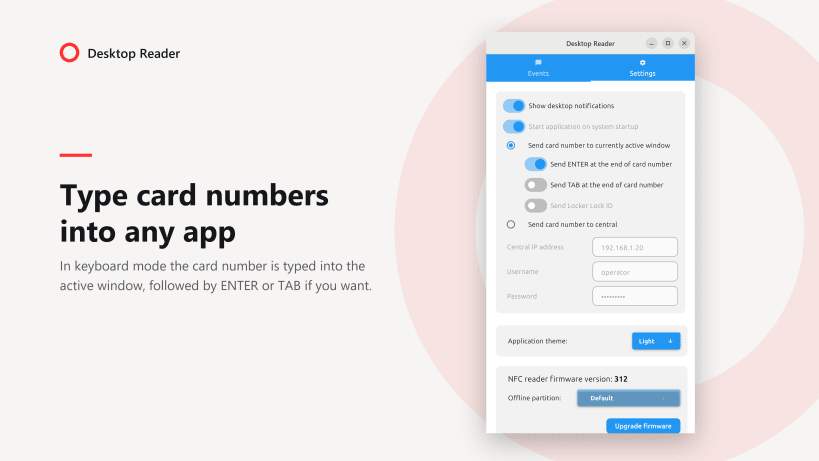
No Central at the desk? Switch to keyboard mode and the card number is typed into whichever window is active, optionally followed by ENTER or TAB, so it works with any program that accepts keyboard input.
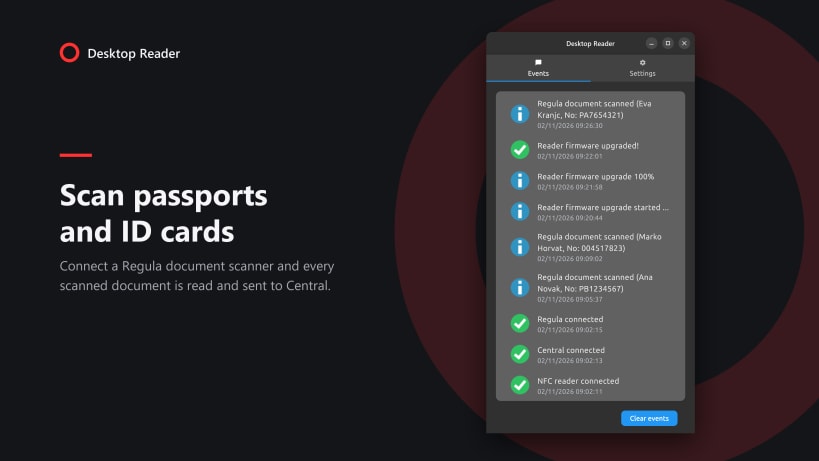
With a Regula document scanner connected, Desktop Reader also reads passports and ID cards and sends the scanned data to Central.
From Settings you can see the reader's firmware version and upgrade it with one click, choose the offline partition you work in, and pick a light, dark or System theme.
Desktop Reader requires an NFC USB card reader supplied by Prima sistemi. Sending cards to Central requires access to a Prima Central.
You are about to open
Do you wish to proceed?
Thank you for your report. Information you provided will help us investigate further.
There was an error while sending your report. Please try again later.
Snaps are applications packaged with all their dependencies to run on all popular Linux distributions from a single build. They update automatically and roll back gracefully.
Snaps are discoverable and installable from the Snap Store, an app store with an audience of millions.
Snap can be installed on elementary OS from the command line. Open Terminal from the Applications launcher and type the following:
sudo apt update
sudo apt install snapd
Either log out and back in again, or restart your system, to ensure snap’s paths are updated correctly.
To install Desktop Reader, simply use the following command:
sudo snap install desktopreader

Browse and find snaps from the convenience of your desktop using the snap store snap.

Interested to find out more about snaps? Want to publish your own application? Visit snapcraft.io now.