

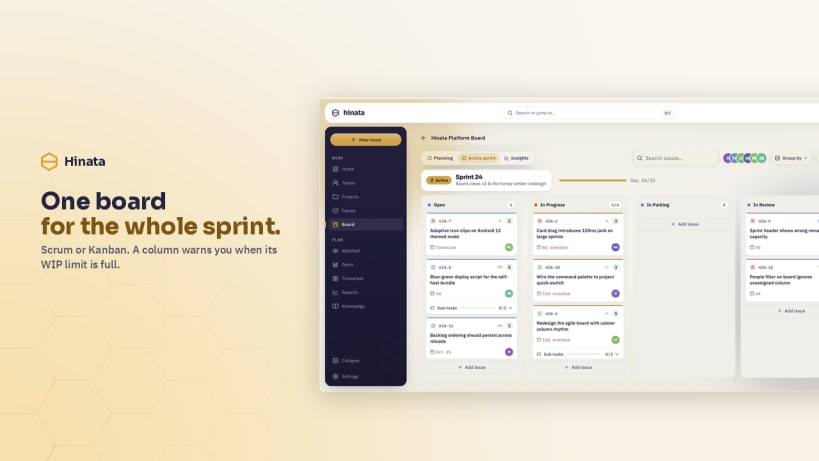
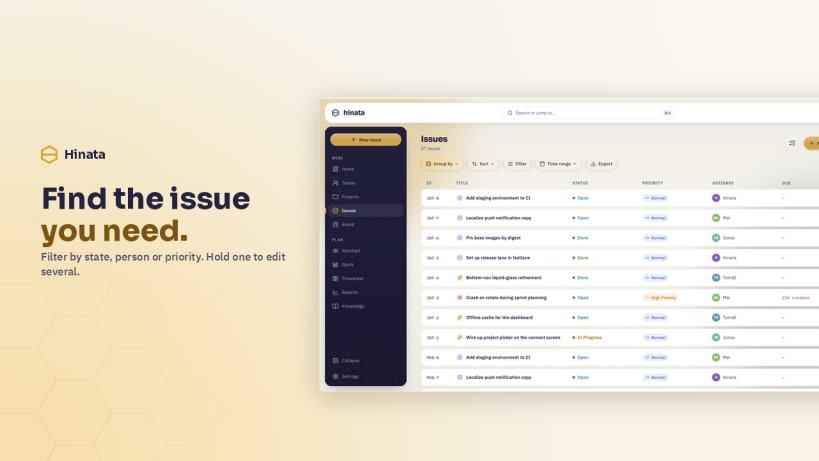
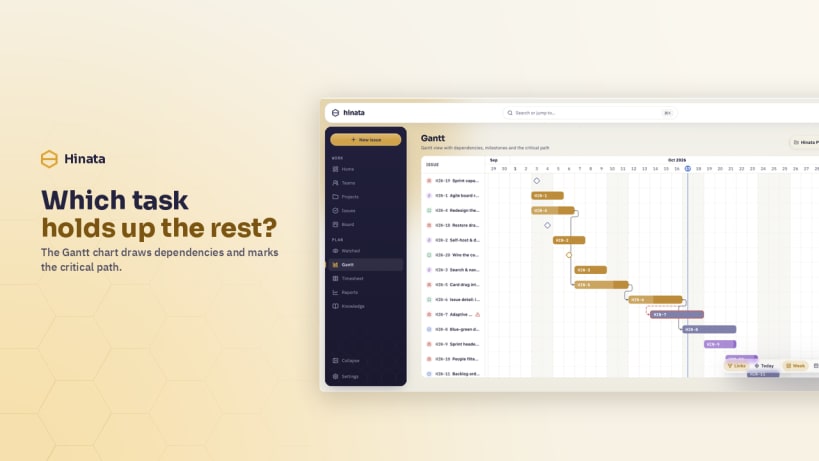

Hinata is the desktop client for a self-hosted Hinata server: projects and teams, an issue hierarchy from epic down to sub-task, agile boards, sprints, a Gantt timeline, timesheets, reports, a knowledge base and threaded comments with reactions and voice notes. Nothing is hosted for you — on first start the app asks for your server URL, and it keeps as many servers side by side as you like, each with its own tokens.
Two of its permissions do not connect themselves, because snapd wants you to grant them deliberately:
 snap connect hinata:password-manager-service
 snap connect hinata:audio-record
Without the first, signing in works but the session only lasts until you quit and the next start asks for your password again. Without the second, the sound server refuses the microphone and a voice comment records nothing.
Some capabilities differ from the other desktops. Push notifications are not available — Firebase has no Linux client, so notifications arrive by e-mail and in the app's own notification centre. Capturing a photo or video from a webcam is not offered; existing files attach as usual. Downloaded attachments land in your ~/Downloads folder, the same place every other packaging of this app puts them.
The interface is available in English and German.
You are about to open
Do you wish to proceed?
Thank you for your report. Information you provided will help us investigate further.
There was an error while sending your report. Please try again later.
Snaps are applications packaged with all their dependencies to run on all popular Linux distributions from a single build. They update automatically and roll back gracefully.
Snaps are discoverable and installable from the Snap Store, an app store with an audience of millions.
If you’re running Ubuntu 16.04 LTS (Xenial Xerus) or later, including Ubuntu 18.04 LTS (Bionic Beaver) and Ubuntu 20.04 LTS (Focal Fossa), you don’t need to do anything. Snap is already installed and ready to go.
For versions of Ubuntu between 14.04 LTS (Trusty Tahr) and 15.10 (Wily Werewolf), as well as Ubuntu flavours that don’t include snap by default, snap can be installed from the Ubuntu Software Centre by searching for snapd.
Alternatively, snapd can be installed from the command line:
sudo apt update
sudo apt install snapd
Either log out and back in again, or restart your system, to ensure snap’s paths are updated correctly.
To install Hinata, simply use the following command:
sudo snap install hinata
Browse and find snaps from the convenience of your desktop using the snap store snap.

Interested to find out more about snaps? Want to publish your own application? Visit snapcraft.io now.