

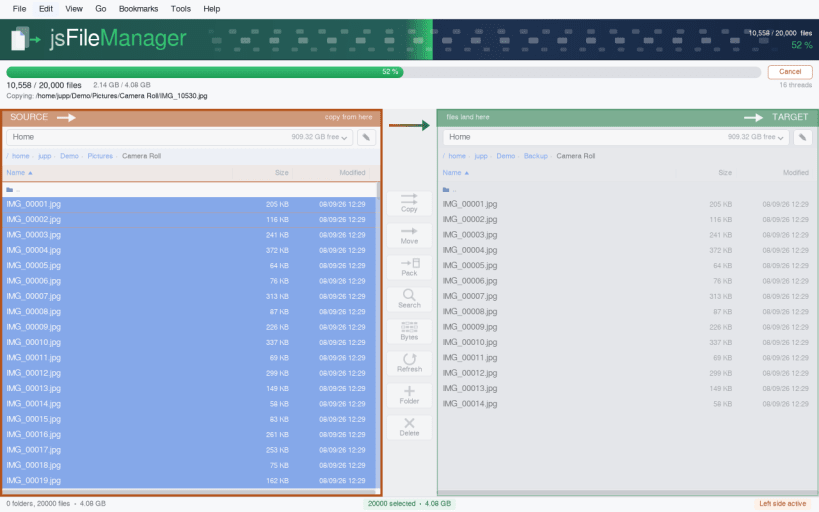
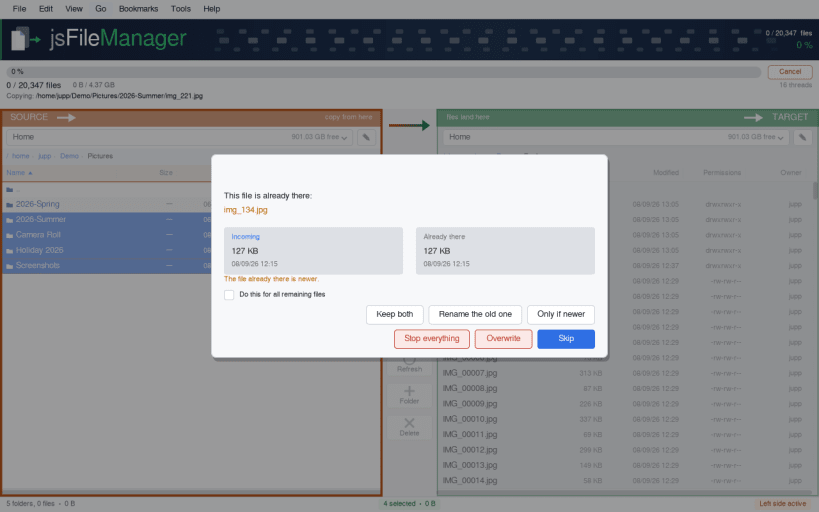
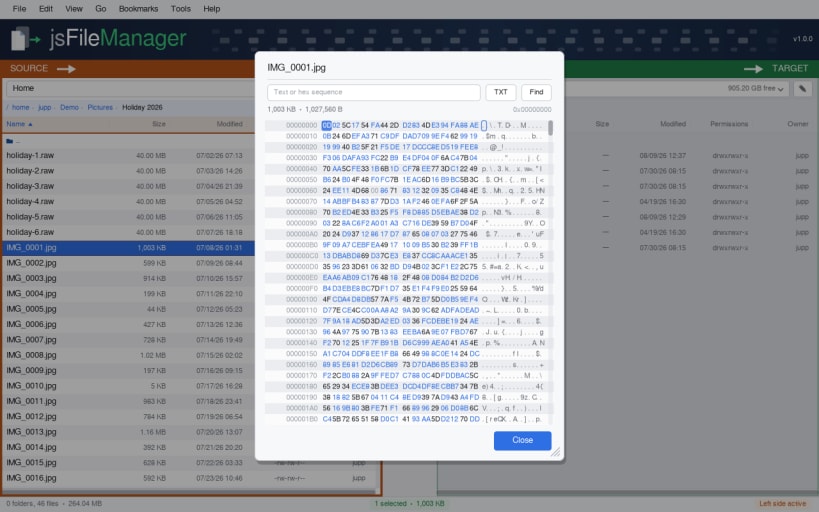
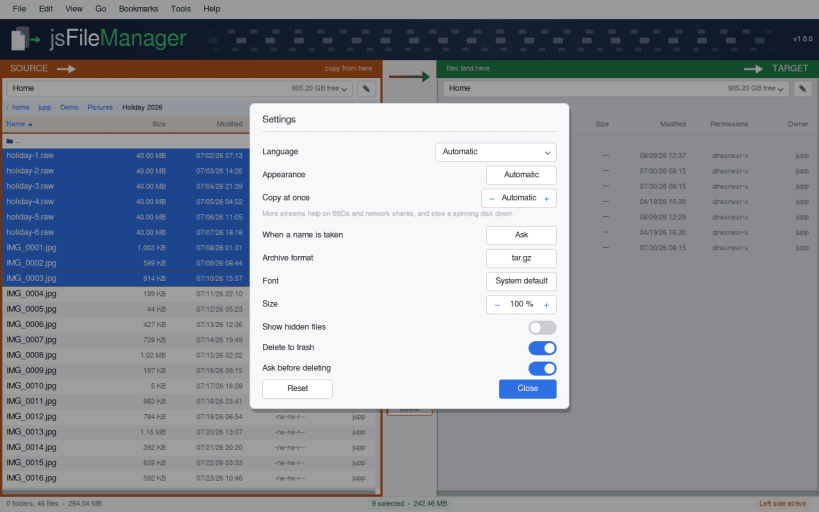
Two Filebrowser side by side, and the buttons between them that move files from one side to the other. Pick a drive at the top of each side, select what should go, press the arrow.
Built around the copy itself: while it runs you see which file is being written, how many of how many are done, how fast it is going, how long is left, and what failed — as it happens, not afterwards.
What it does:
▶ ARCHIVES IN THE SNAP EDITION
Packing, unpacking and looking inside an archive work here for tar.gz, tar.bz2 and plain tar — those come with the Snap base. zip, 7z, tar.xz, tar.zst and tar.lz4 do not: the sandbox is not allowed to run your system's programs, and this package deliberately does not bundle its own copies of them. The .deb, .rpm, AppImage and AUR editions handle every format, using the programs your system already has.
▶ ONE-TIME SETUP
For USB sticks, SD cards, external disks, network mounts and folders outside your home directory — one line, once:
sudo sh -c 'for i in removable-media system-backup mount-observe; do snap connect jsfilemanager:$i; done'
Your home directory works without it. No reboot, just restart the app.
Supported systems:
Also available as .deb and .rpm, flatpack, AppImage at www.budbrain.de
▶ PLEASE NOTE
Moving and deleting change your files. Deleting to the trash can be undone from your desktop's trash; deleting permanently cannot, and neither can overwriting a file during a copy. Please check what you have selected before you confirm, and keep a backup of anything you cannot recreate. The software is provided "as is", without warranty of any kind, and is used at your own risk.
Keywords: file manager, two-pane file manager, dual pane, twin panel, commander, file browser, copy files, move files, rename, duplicate, delete, trash, folders, directories, USB stick, SD card, external drive, network share, NAS, disk space, file transfer, progress, GTK, Linux desktop
Developed by Josef Sejrek / Budbrain Software Contact: jsfilemanager@budbrain.de | www.budbrain.de
You are about to open
Do you wish to proceed?
Thank you for your report. Information you provided will help us investigate further.
There was an error while sending your report. Please try again later.
Snaps are applications packaged with all their dependencies to run on all popular Linux distributions from a single build. They update automatically and roll back gracefully.
Snaps are discoverable and installable from the Snap Store, an app store with an audience of millions.
Snap is available for CentOS 7.6+, and Red Hat Enterprise Linux 7.6+, from the Extra Packages for Enterprise Linux (EPEL) repository. The EPEL repository can be added to your system with the following command:
sudo yum install epel-release
Snap can now be installed as follows:
sudo yum install snapd
Once installed, the systemd unit that manages the main snap communication socket needs to be enabled:
sudo systemctl enable --now snapd.socket
To enable classic snap support, enter the following to create a symbolic link between /var/lib/snapd/snap and /snap:
sudo ln -s /var/lib/snapd/snap /snap
Either log out and back in again, or restart your system, to ensure snap’s paths are updated correctly.
To install jsFileManager, simply use the following command:
sudo snap install jsfilemanager
Browse and find snaps from the convenience of your desktop using the snap store snap.

Interested to find out more about snaps? Want to publish your own application? Visit snapcraft.io now.