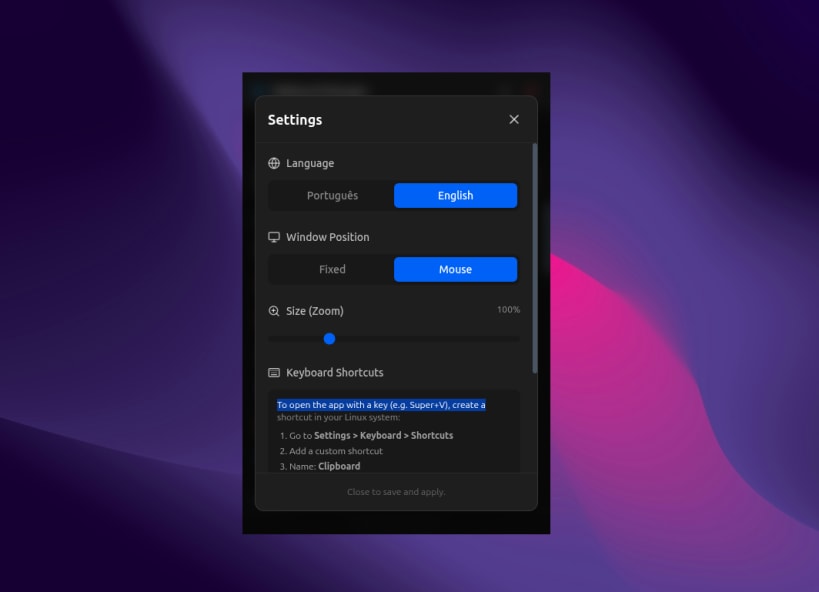
inux Clipboard is a powerful productivity tool designed to enhance your copy-paste workflow on Linux. Unlike standard clipboard managers, this application provides a rich visual history for both text and images, plus a dedicated picker for special characters.
It operates as a non-intrusive floating window that appears instantly near your cursor or at a fixed position, allowing you to paste items without losing focus on your current task.
Key Features:
Visual History: View previews of copied images and text snippets instantly.
Emoji & Symbol Picker: Built-in tool to easily insert emojis and symbols, similar to the Windows feature (Win + .).
Pin Favorites: Keep frequently used items permanently at the top of your list.
Smart Window: Opens as a floating dialog that doesn't clutter your taskbar.
Drag & Drop: Easily reorder your clipboard history.
Search: Quickly find specific text clips within your history.
Customizable: Includes both Dark and Light themes to match your desktop environment.
You are about to open
Do you wish to proceed?
Thank you for your report. Information you provided will help us investigate further.
There was an error while sending your report. Please try again later.
Snaps are applications packaged with all their dependencies to run on all popular Linux distributions from a single build. They update automatically and roll back gracefully.
Snaps are discoverable and installable from the Snap Store, an app store with an audience of millions.
Snap can be installed from the command line on openSUSE Leap 15.x and Tumbleweed.
You need first add the snappy repository from the terminal. Choose the appropriate command depending on your installed openSUSE flavor.
Tumbleweed:
sudo zypper addrepo --refresh https://download.opensuse.org/repositories/system:/snappy/openSUSE_Tumbleweed snappy
Leap 15.x:
sudo zypper addrepo --refresh https://download.opensuse.org/repositories/system:/snappy/openSUSE_Leap_15.6 snappy
If needed, Swap out openSUSE_Leap_15. for, openSUSE_Leap_16.0 if you’re using a different version of openSUSE.
With the repository added, import its GPG key:
sudo zypper --gpg-auto-import-keys refresh
Finally, upgrade the package cache to include the new snappy repository:
sudo zypper dup --from snappy
Snap can now be installed with the following:
sudo zypper install snapd
You then need to either reboot, logout/login or source /etc/profile to have /snap/bin added to PATH.
Additionally, enable and start both the snapd and the snapd.apparmor services with the following commands:
sudo systemctl enable --now snapd
sudo systemctl enable --now snapd.apparmor
To install Linux Clipboard, simply use the following command:
sudo snap install linux-clipboard
Browse and find snaps from the convenience of your desktop using the snap store snap.

Interested to find out more about snaps? Want to publish your own application? Visit snapcraft.io now.