
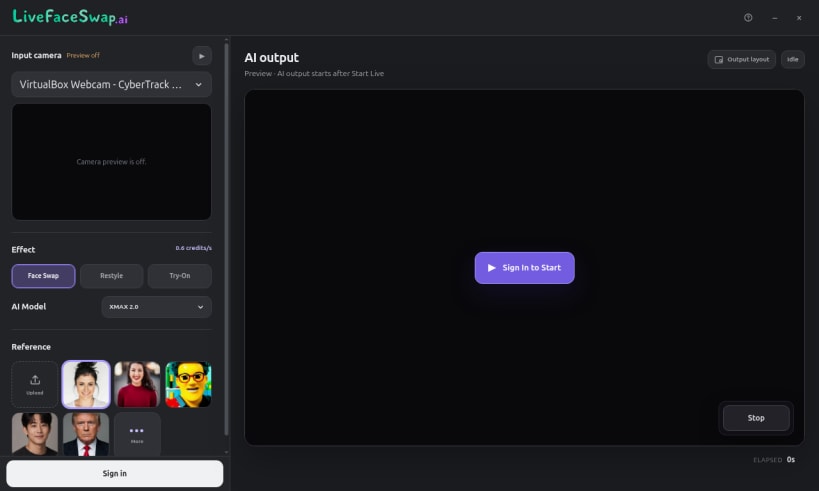
LiveFaceSwap AI lets you explore a new face, outfit, or visual style live through your Linux webcam. Choose a camera, an authorized reference image or built-in preset, and an AI model, then watch the result in the desktop app as you move. AI processing runs in the cloud, so you do not need a dedicated GPU or a local model download.
Explore three creative modes: • Face Swap: preview an authorized face reference on your live camera video. • Live Try-On: explore clothing and looks with outfit references. • Live Restyle: transform your camera scene into a new visual style or character look.
Switch effects, models, and references in one workspace. Preview your camera input and AI output, and check the selected model's credit rate before starting. Learn more and try LiveFaceSwap AI online at https://livefaceswap.ai/desktop.
Linux preview: AI output is available inside the app. Virtual camera output to OBS, Zoom, or other programs is not available on Linux yet. Sign-in and internet access are required; real-time sessions use credits at the displayed rate. If the webcam is unavailable, run sudo snap connect livefaceswap-desktop:camera and reopen the app.
Use only media and likenesses you have permission to use.
You are about to open
Do you wish to proceed?
Thank you for your report. Information you provided will help us investigate further.
There was an error while sending your report. Please try again later.
Snaps are applications packaged with all their dependencies to run on all popular Linux distributions from a single build. They update automatically and roll back gracefully.
Snaps are discoverable and installable from the Snap Store, an app store with an audience of millions.
Snap is available for Red Hat Enterprise Linux (RHEL) 8 and RHEL 7, from the 7.6 release onward.
The packages for RHEL 7, RHEL 8, and RHEL 9 are in each distribution’s respective Extra Packages for Enterprise Linux (EPEL) repository. The instructions for adding this repository diverge slightly between RHEL 7, RHEL 8 and RHEL 9, which is why they’re listed separately below.
The EPEL repository can be added to RHEL 9 with the following command:
sudo dnf install https://dl.fedoraproject.org/pub/epel/epel-release-latest-9.noarch.rpm
sudo dnf upgrade
The EPEL repository can be added to RHEL 8 with the following command:
sudo dnf install https://dl.fedoraproject.org/pub/epel/epel-release-latest-8.noarch.rpm
sudo dnf upgrade
The EPEL repository can be added to RHEL 7 with the following command:
sudo rpm -ivh https://dl.fedoraproject.org/pub/epel/epel-release-latest-7.noarch.rpm
Adding the optional and extras repositories is also recommended:
sudo subscription-manager repos --enable "rhel-*-optional-rpms" --enable "rhel-*-extras-rpms"
sudo yum update
Snap can now be installed as follows:
sudo yum install snapd
Once installed, the systemd unit that manages the main snap communication socket needs to be enabled:
sudo systemctl enable --now snapd.socket
To enable classic snap support, enter the following to create a symbolic link between /var/lib/snapd/snap and /snap:
sudo ln -s /var/lib/snapd/snap /snap
Either log out and back in again or restart your system to ensure snap’s paths are updated correctly.
To install LiveFaceSwap AI, simply use the following command:
sudo snap install livefaceswap-desktop
Browse and find snaps from the convenience of your desktop using the snap store snap.

Interested to find out more about snaps? Want to publish your own application? Visit snapcraft.io now.