


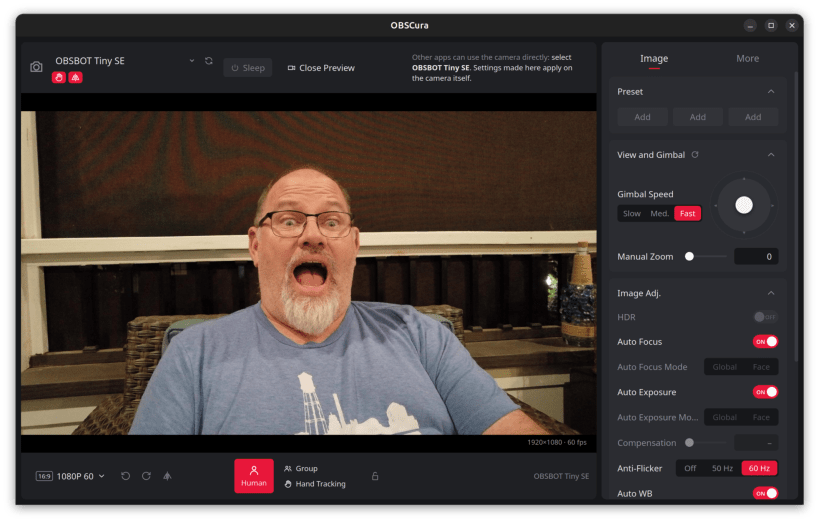

Configure OBSBOT webcams on Linux: AI tracking (human, group, hand), gesture control, gimbal joystick, mirror image, and image settings such as focus, exposure and white balance, with a live preview.
Settings are written to the camera itself, so they apply in every app that
uses it. Also includes a lightweight panel indicator (obscura.indicator)
for quick toggles during calls, and the obscura.obsbotctl command-line
tool.
Supported: OBSBOT Tiny SE. Other OBSBOT models get the standard webcam controls. Not affiliated with OBSBOT / Remo Tech.
After installing, connect the camera interface:
sudo snap connect obscura:camera
Optionally, to show the camera's USB product name, serial number and revision in the Device panel:
sudo snap connect obscura:hardware-observe
To call the CLI as plain obsbotctl:
sudo snap alias obscura.obsbotctl obsbotctl
You are about to open
Do you wish to proceed?
Thank you for your report. Information you provided will help us investigate further.
There was an error while sending your report. Please try again later.
Snaps are applications packaged with all their dependencies to run on all popular Linux distributions from a single build. They update automatically and roll back gracefully.
Snaps are discoverable and installable from the Snap Store, an app store with an audience of millions.
Snap is available for CentOS 7.6+, and Red Hat Enterprise Linux 7.6+, from the Extra Packages for Enterprise Linux (EPEL) repository. The EPEL repository can be added to your system with the following command:
sudo yum install epel-release
Snap can now be installed as follows:
sudo yum install snapd
Once installed, the systemd unit that manages the main snap communication socket needs to be enabled:
sudo systemctl enable --now snapd.socket
To enable classic snap support, enter the following to create a symbolic link between /var/lib/snapd/snap and /snap:
sudo ln -s /var/lib/snapd/snap /snap
Either log out and back in again, or restart your system, to ensure snap’s paths are updated correctly.
To install OBSCura, simply use the following command:
sudo snap install obscura
Browse and find snaps from the convenience of your desktop using the snap store snap.

Interested to find out more about snaps? Want to publish your own application? Visit snapcraft.io now.