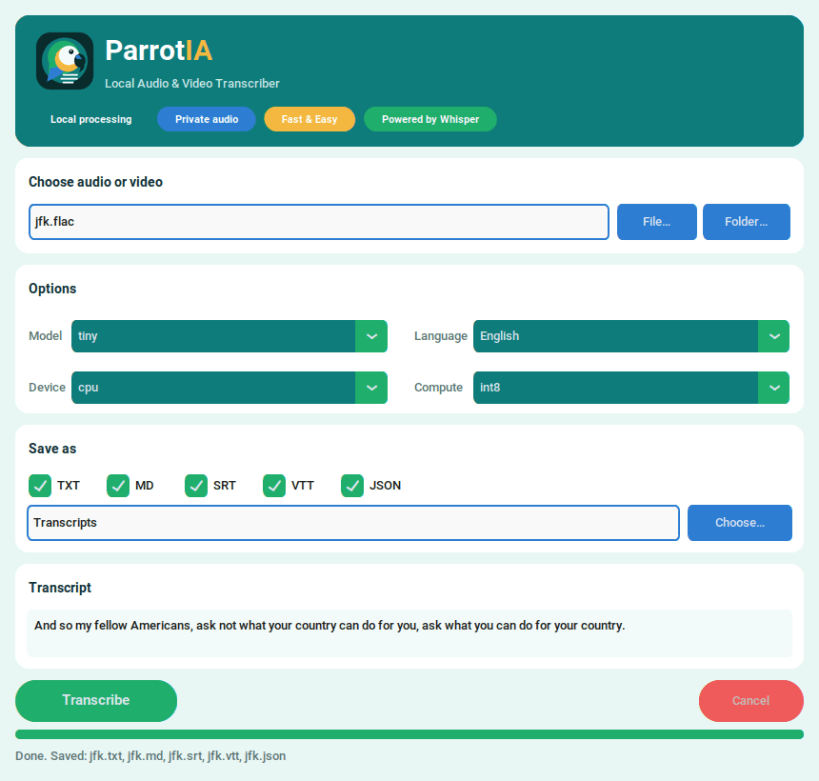
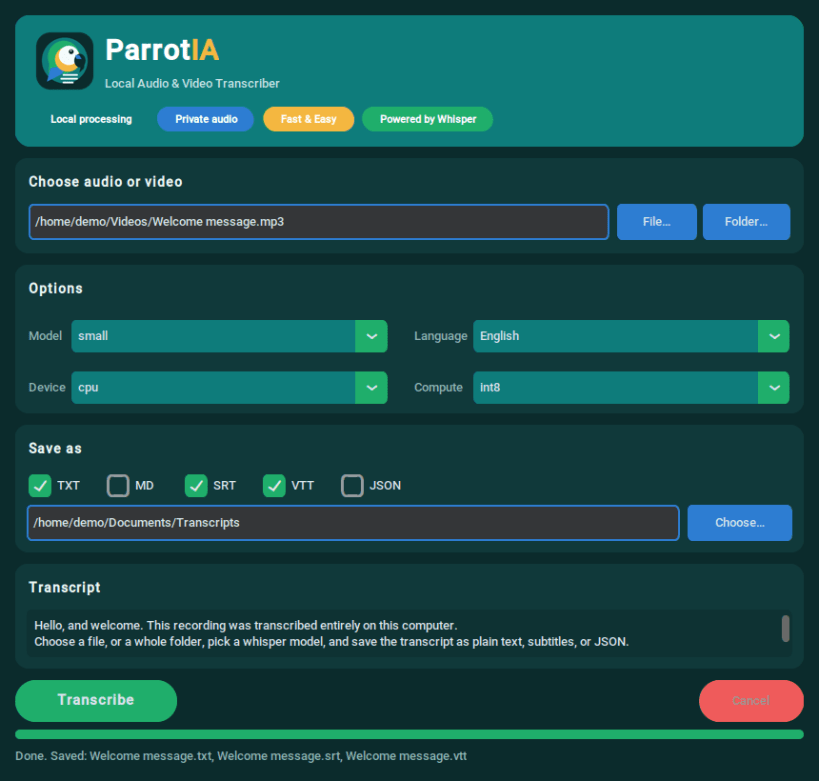
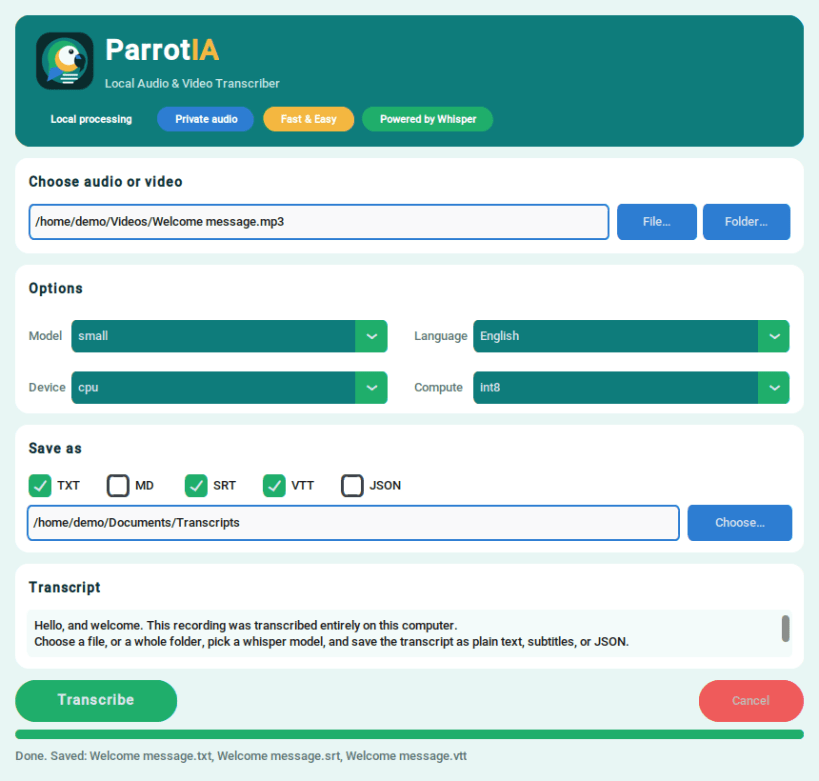
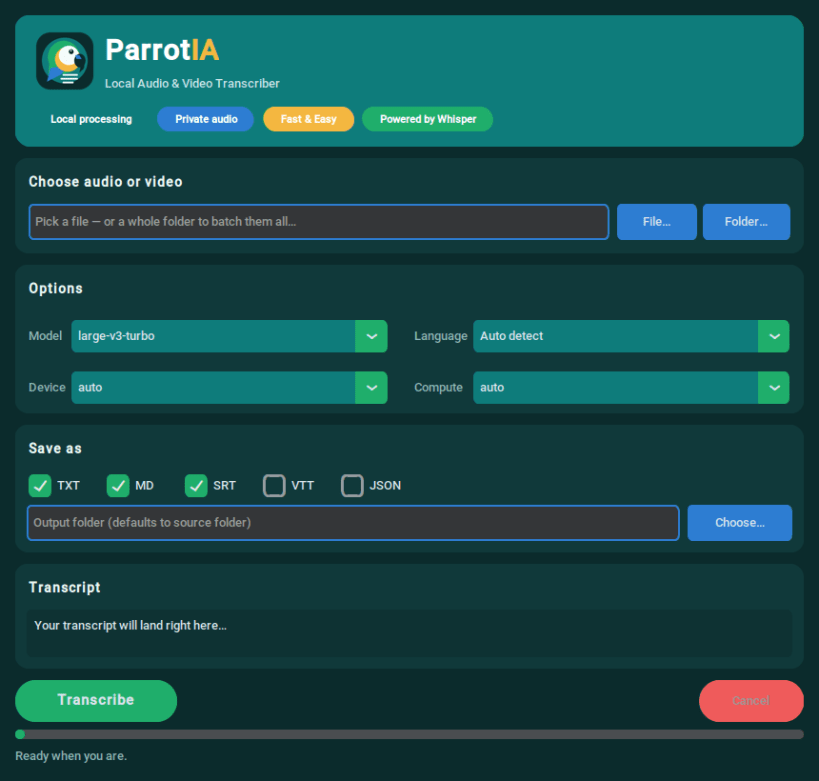
ParrotIA turns audio and video recordings into text on your own computer. Choose a file or a whole folder, pick a Whisper model and a language, and save the transcript as plain text, Markdown, subtitles or JSON. Your recordings never leave your machine.
What it does
parrotia) for scripts, and a benchmark mode to compare models on your own recordingsPrivacy and downloads
Transcription runs locally on your CPU. Audio is not uploaded to any transcription service, and no account or API key is needed. The first time you use a model, ParrotIA downloads it from Hugging Face (about 75 MB for tiny up to 3.1 GB; the default model is about 1.6 GB). Models are kept under ~/snap/parrotia/common/huggingface/, survive updates and work offline afterwards.
Getting started
Open ParrotIA from your application menu, or run parrotia.gui. For the command line, run parrotia --help.
Files in your home folder are accessible. To transcribe from external drives, connect the optional interface:
sudo snap connect parrotia:removable-media
If the source folder is read-only, choose a writable output folder.
Requirements
64-bit Intel/AMD Linux. The interface uses X11 or XWayland. This package runs on the CPU; NVIDIA GPU acceleration is not included.
License
ParrotIA is free software under AGPL-3.0-or-later. It uses shared FFmpeg libraries under LGPL-2.1-or-later. Source archives, build settings and third-party notices are included in the snap under /snap/parrotia/current/share/doc/parrotia/ and /snap/parrotia/current/share/licenses/parrotia/.
Source code, issues and support: https://github.com/igorbispo99/ParrotIA
You are about to open
Do you wish to proceed?
Thank you for your report. Information you provided will help us investigate further.
There was an error while sending your report. Please try again later.
Snaps are applications packaged with all their dependencies to run on all popular Linux distributions from a single build. They update automatically and roll back gracefully.
Snaps are discoverable and installable from the Snap Store, an app store with an audience of millions.
Snapd can be installed from Manjaro’s Add/Remove Software application (Pamac), found in the launch menu. From the application, search for snapd, select the result, and click Apply.
Alternatively, snapd can be installed from the command line:
sudo pacman -S snapd
Once installed, the systemd unit that manages the main snap communication socket needs to be enabled:
sudo systemctl enable --now snapd.socket
To enable classic snap support, enter the following to create a symbolic link between /var/lib/snapd/snap and /snap:
sudo ln -s /var/lib/snapd/snap /snap
Either log out and back in again, or restart your system, to ensure snap’s paths are updated correctly.
To install ParrotIA, simply use the following command:
sudo snap install parrotia
Browse and find snaps from the convenience of your desktop using the snap store snap.
Interested to find out more about snaps? Want to publish your own application? Visit snapcraft.io now.