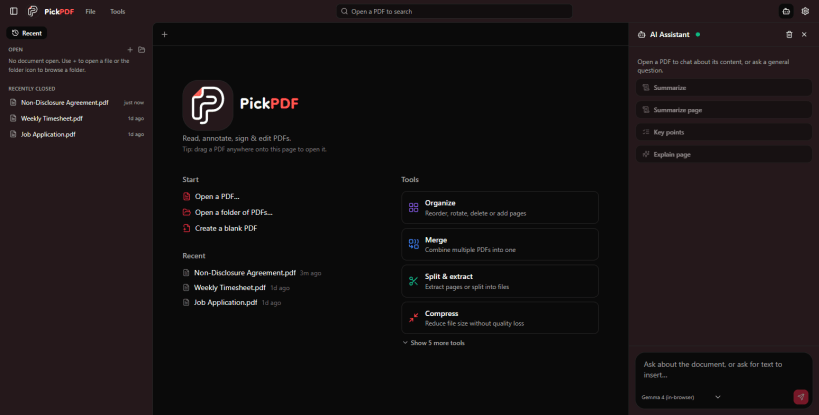

PickPDF is a local-first PDF reader and editor. Open PickPDF from the toolbar, choose a PDF from your device or drag it into the editor, then save the finished document locally.
With PickPDF, you can: • Edit existing PDF text • Highlight, draw, add shapes, stamps, and notes • Fill forms or create fillable form fields • Add signatures • Redact sensitive information • Run OCR on scanned documents • Reorder, rotate, duplicate, delete, merge, split, and extract pages • Compress, crop, watermark, and add page numbers • Export pages and compare PDF documents • Summarize and explain documents with the optional AI assistant Privacy is built into PickPDF. Core PDF editing happens locally in your browser, and your files are not uploaded to a PickPDF server. Optional AI connections configured in Settings may send selected document content to the provider you choose. No PickPDF account or subscription is required. Once loaded, the editor can continue working offline.
You are about to open
Do you wish to proceed?
Thank you for your report. Information you provided will help us investigate further.
There was an error while sending your report. Please try again later.
Snaps are applications packaged with all their dependencies to run on all popular Linux distributions from a single build. They update automatically and roll back gracefully.
Snaps are discoverable and installable from the Snap Store, an app store with an audience of millions.
Snapd can be installed from Manjaro’s Add/Remove Software application (Pamac), found in the launch menu. From the application, search for snapd, select the result, and click Apply.
Alternatively, snapd can be installed from the command line:
sudo pacman -S snapd
Once installed, the systemd unit that manages the main snap communication socket needs to be enabled:
sudo systemctl enable --now snapd.socket
To enable classic snap support, enter the following to create a symbolic link between /var/lib/snapd/snap and /snap:
sudo ln -s /var/lib/snapd/snap /snap
Either log out and back in again, or restart your system, to ensure snap’s paths are updated correctly.
To install PickPDF - PDF Editor, Reader, Signer, simply use the following command:
sudo snap install pickpdf
Browse and find snaps from the convenience of your desktop using the snap store snap.

Interested to find out more about snaps? Want to publish your own application? Visit snapcraft.io now.