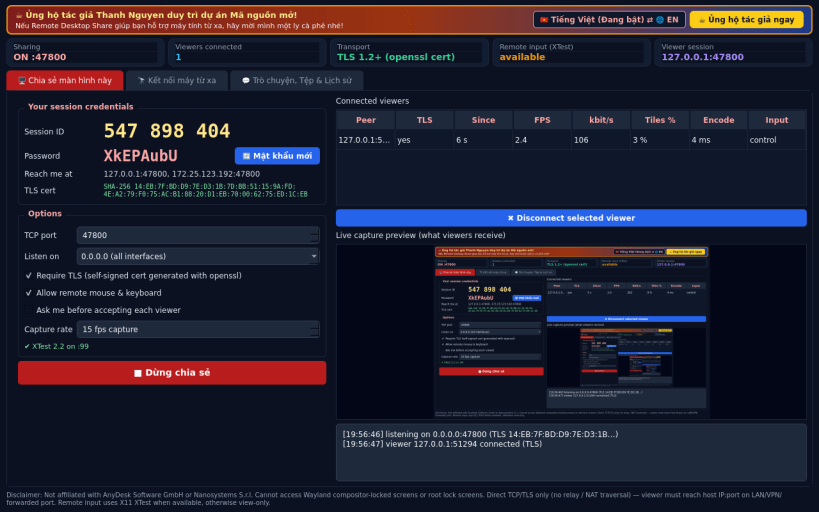
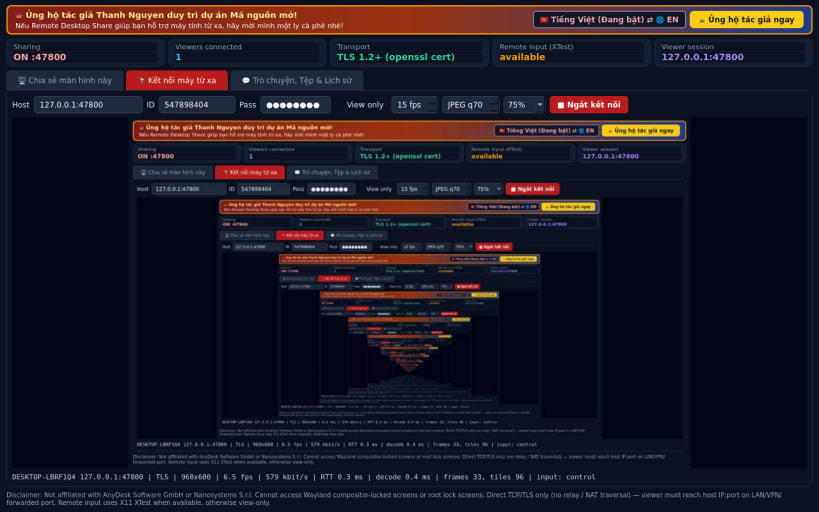
Remote Desktop Share is a Linux alternative to AnyDesk / Supremo for direct desktop sharing between two machines that can reach each other. Disclaimer: This project is an independent open-source tool and is not affiliated with, sponsored by, or endorsed by AnyDesk Software GmbH or Nanosystems S.r.l. Cannot access Wayland compositor-locked screens or root lock screens.
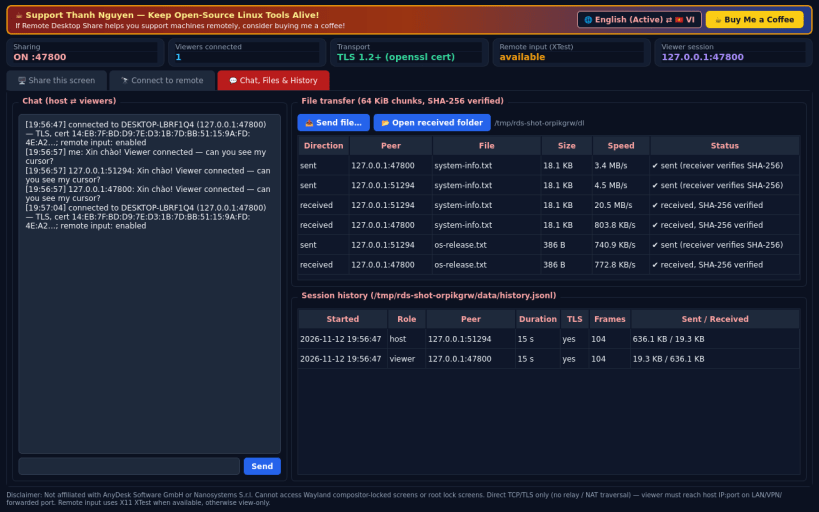
What it really does: • Host: captures the X11 screen (QScreen.grabWindow), splits it into 64x64 tiles and streams only changed tiles as JPEG over TCP. Random 9-digit session ID + random password; mutual HMAC-SHA256 challenge/response. • TLS 1.2+ using a self-signed certificate generated with the openssl binary; the certificate fingerprint is bound into the authentication proof and shown on both sides for comparison. • Viewer: shows the remote screen, adjustable FPS / JPEG quality / scale, measured RTT, fps and bitrate; sends mouse and keyboard events. • Remote input is applied with the X11 XTest extension (libXtst via ctypes) when available; otherwise the session is view-only and says so. • Chat and SHA-256 verified file transfer in both directions; session history.
Honest limits: direct TCP only — no relay server or NAT traversal, so the viewer must reach host IP:port (LAN, VPN or a forwarded port). The "session ID" is part of the credentials, not a global directory. It cannot capture the lock screen, login screen or Wayland-native windows (on Wayland only XWayland content is visible and controllable). No audio, no clipboard sync, no hardware video encoding.
Support development: https://buymeacoffee.com/thanhnv128b
You are about to open
Do you wish to proceed?
Thank you for your report. Information you provided will help us investigate further.
There was an error while sending your report. Please try again later.
Snaps are applications packaged with all their dependencies to run on all popular Linux distributions from a single build. They update automatically and roll back gracefully.
Snaps are discoverable and installable from the Snap Store, an app store with an audience of millions.
Snap can be installed from the command line on openSUSE Leap 15.x and Tumbleweed.
You need first add the snappy repository from the terminal. Choose the appropriate command depending on your installed openSUSE flavor.
Tumbleweed:
sudo zypper addrepo --refresh https://download.opensuse.org/repositories/system:/snappy/openSUSE_Tumbleweed snappy
Leap 15.x:
sudo zypper addrepo --refresh https://download.opensuse.org/repositories/system:/snappy/openSUSE_Leap_15.6 snappy
If needed, Swap out openSUSE_Leap_15. for, openSUSE_Leap_16.0 if you’re using a different version of openSUSE.
With the repository added, import its GPG key:
sudo zypper --gpg-auto-import-keys refresh
Finally, upgrade the package cache to include the new snappy repository:
sudo zypper dup --from snappy
Snap can now be installed with the following:
sudo zypper install snapd
You then need to either reboot, logout/login or source /etc/profile to have /snap/bin added to PATH.
Additionally, enable and start both the snapd and the snapd.apparmor services with the following commands:
sudo systemctl enable --now snapd
sudo systemctl enable --now snapd.apparmor
To install Remote Desktop Share, simply use the following command:
sudo snap install remote-desktop-share
Browse and find snaps from the convenience of your desktop using the snap store snap.
Interested to find out more about snaps? Want to publish your own application? Visit snapcraft.io now.