
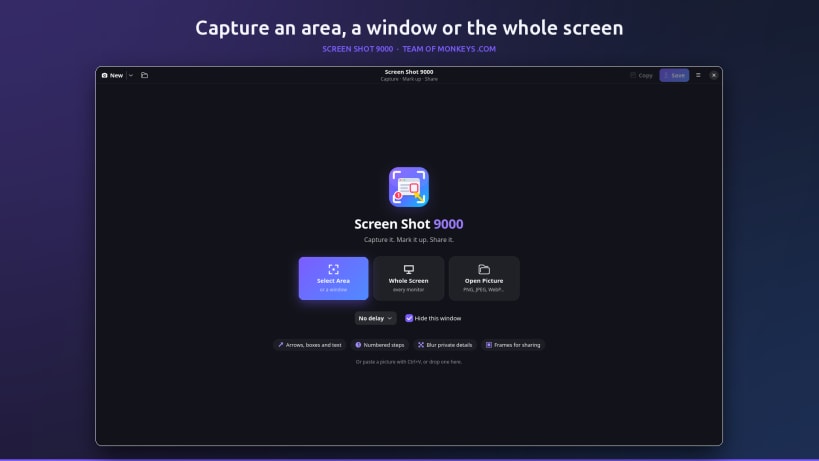
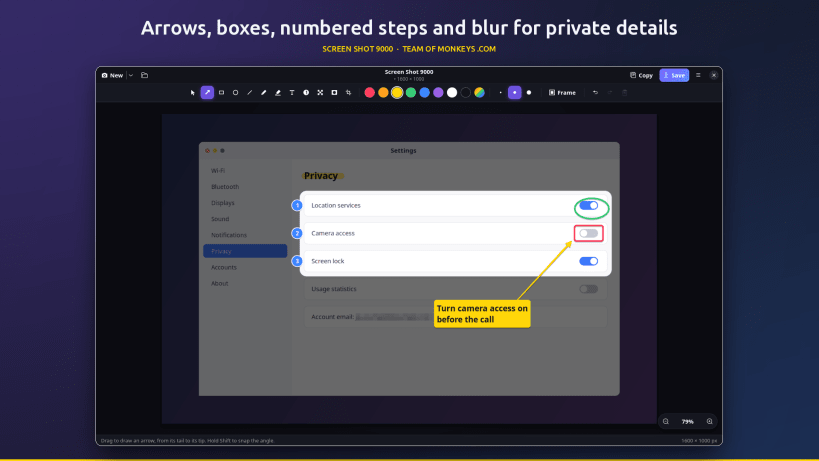
Take a screenshot. Explain it. Share it. Screen Shot 9000 by Team of Monkeys .com takes a screenshot and gives you everything you need to explain it: point at things with arrows, number the steps, blur what is private and shine a spotlight on what matters. Then copy it straight into a chat, an email or a document, or save it. It is the snipping tool and markup editor in one clean, dark window.
Made for the screenshots you send every day: showing a colleague which button to press, reporting a bug, writing a how-to, answering "where is that setting?", or sharing something funny without your name and email in it.
★ Capture
★ Mark it up
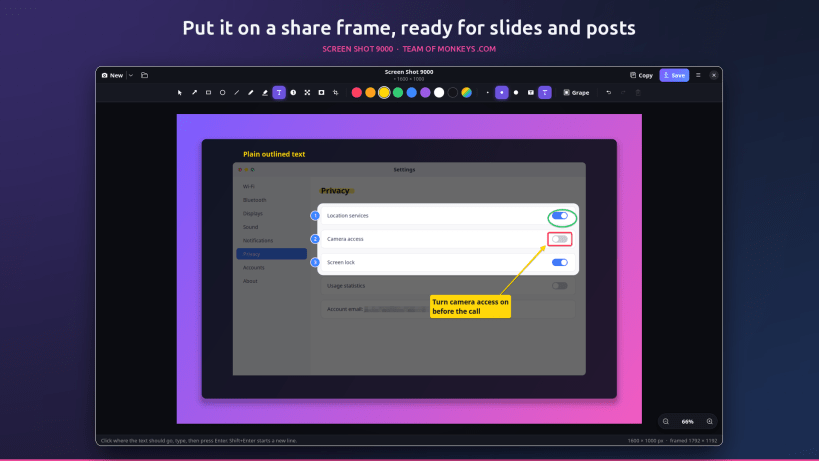
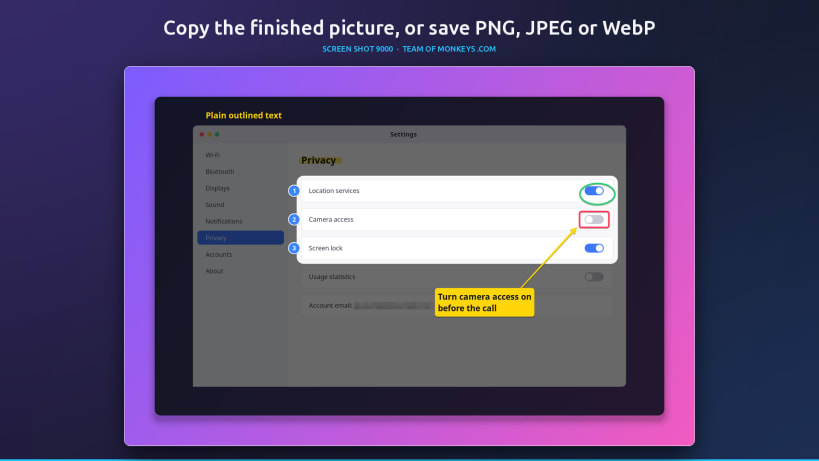
★ Share
Copy the finished picture with one click and paste it anywhere, or save it as PNG, JPEG or WebP. Add a share frame to put the screenshot on a gradient backdrop with padding, rounded corners and a soft shadow, ready for slides, docs, blog posts and social media.
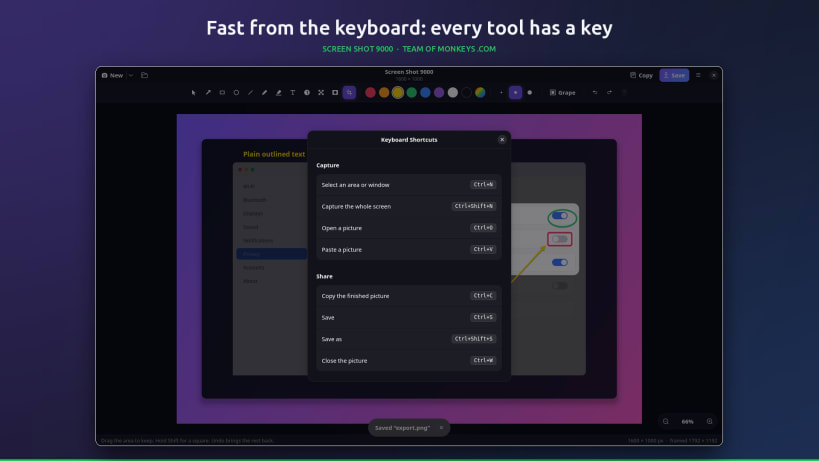
★ Fast from the keyboard
Ctrl+N captures an area, Ctrl+Shift+N the whole screen, Ctrl+C copies, Ctrl+S saves and Ctrl+Z undoes. V A R E L P H T N B S C pick a tool, 1 2 3 the size, Delete removes the selected mark and Ctrl+? lists every shortcut.
★ Private by design
No accounts, no ads, no telemetry and no internet connection. Screenshots are taken through your desktop's screenshot portal, so it works on Wayland and X11, and pictures are opened and saved through your desktop's file chooser, so the app only ever sees the files you pick.
You are about to open
Do you wish to proceed?
Thank you for your report. Information you provided will help us investigate further.
There was an error while sending your report. Please try again later.
Snaps are applications packaged with all their dependencies to run on all popular Linux distributions from a single build. They update automatically and roll back gracefully.
Snaps are discoverable and installable from the Snap Store, an app store with an audience of millions.
Snap is available for CentOS 7.6+, and Red Hat Enterprise Linux 7.6+, from the Extra Packages for Enterprise Linux (EPEL) repository. The EPEL repository can be added to your system with the following command:
sudo yum install epel-release
Snap can now be installed as follows:
sudo yum install snapd
Once installed, the systemd unit that manages the main snap communication socket needs to be enabled:
sudo systemctl enable --now snapd.socket
To enable classic snap support, enter the following to create a symbolic link between /var/lib/snapd/snap and /snap:
sudo ln -s /var/lib/snapd/snap /snap
Either log out and back in again, or restart your system, to ensure snap’s paths are updated correctly.
To install Screen Shot 9000, simply use the following command:
sudo snap install screen-shot-app
Browse and find snaps from the convenience of your desktop using the snap store snap.
Interested to find out more about snaps? Want to publish your own application? Visit snapcraft.io now.