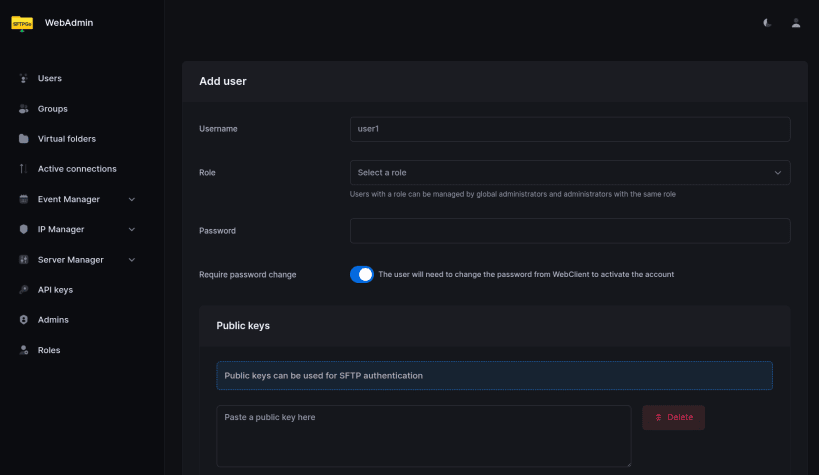
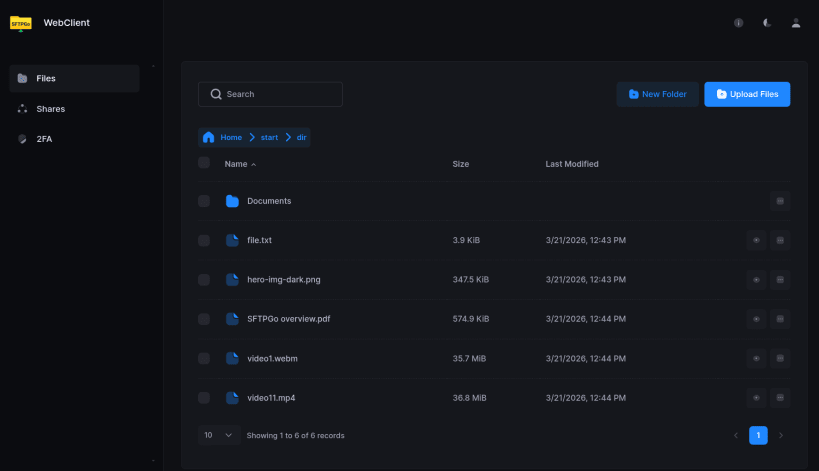
SFTPGo is a file transfer server for SFTP, HTTP/S, FTP/S and WebDAV. It stores files on the local filesystem, optionally encrypted, or in S3-compatible, Google Cloud and Azure Blob storage and on other SFTP servers. Users, groups, quotas, shares and event rules are managed in the web administration interface or with the REST API, and users can reach their files in the web client.
Getting started
The service starts right after installation. SFTP listens on port 2022 on all interfaces; no account exists yet. The web interfaces and the REST API listen on 127.0.0.1:8080 (this machine only). Open http://127.0.0.1:8080/web/admin and create the first administrator with the installation code generated for this machine:
sudo cat /var/snap/sftpgo/common/credentials/installation-code
Then add users and connect, for example with sftp -P 2022 alice@server.
Settings
To open the web interfaces to your network, or to enable FTP and WebDAV:
sudo snap set sftpgo http-address=:8080
sudo snap set sftpgo ftp-address=:2121 webdav-address=:8090
Other settings go in /var/snap/sftpgo/common/sftpgo.json; restart the service after editing:
sudo snap restart sftpgo.daemon
Storage
Users' files are kept in /var/snap/sftpgo/common/data. To keep them on a drive mounted under /media or /mnt, in a folder owned by root:
sudo snap connect sftpgo:removable-media
sudo snap set sftpgo users-base-dir=/mnt/disk1/sftpgo
SFTPGo is licensed under AGPL-3.0-only with additional terms. The theme of its web interfaces is proprietary and may only be used within SFTPGo.
You are about to open
Do you wish to proceed?
Thank you for your report. Information you provided will help us investigate further.
There was an error while sending your report. Please try again later.
Snaps are applications packaged with all their dependencies to run on all popular Linux distributions from a single build. They update automatically and roll back gracefully.
Snaps are discoverable and installable from the Snap Store, an app store with an audience of millions.
Snap can be installed from the command line on openSUSE Leap 15.x and Tumbleweed.
You need first add the snappy repository from the terminal. Choose the appropriate command depending on your installed openSUSE flavor.
Tumbleweed:
sudo zypper addrepo --refresh https://download.opensuse.org/repositories/system:/snappy/openSUSE_Tumbleweed snappy
Leap 15.x:
sudo zypper addrepo --refresh https://download.opensuse.org/repositories/system:/snappy/openSUSE_Leap_15.6 snappy
If needed, Swap out openSUSE_Leap_15. for, openSUSE_Leap_16.0 if you’re using a different version of openSUSE.
With the repository added, import its GPG key:
sudo zypper --gpg-auto-import-keys refresh
Finally, upgrade the package cache to include the new snappy repository:
sudo zypper dup --from snappy
Snap can now be installed with the following:
sudo zypper install snapd
You then need to either reboot, logout/login or source /etc/profile to have /snap/bin added to PATH.
Additionally, enable and start both the snapd and the snapd.apparmor services with the following commands:
sudo systemctl enable --now snapd
sudo systemctl enable --now snapd.apparmor
To install SFTPGo, simply use the following command:
sudo snap install sftpgo
Browse and find snaps from the convenience of your desktop using the snap store snap.
Interested to find out more about snaps? Want to publish your own application? Visit snapcraft.io now.