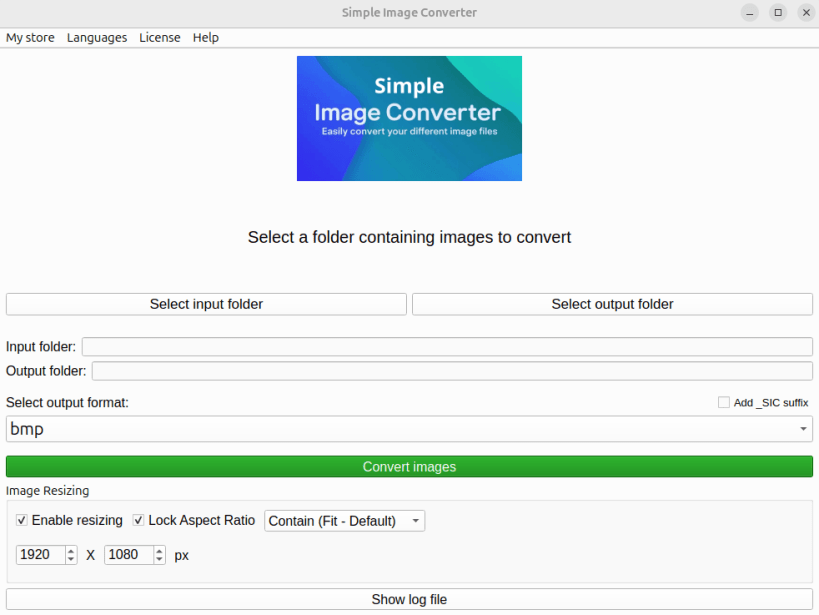
Simple Image Converter is a fast, high-performance, and 100% offline desktop application designed for secure and effortless batch conversion of images and documents.
Built with a focus on Privacy-by-Design, the application performs all operations locally. Your sensitive documents never leave your computer.
What's New in v1.7: "Performance, Security & Pro Resizing"
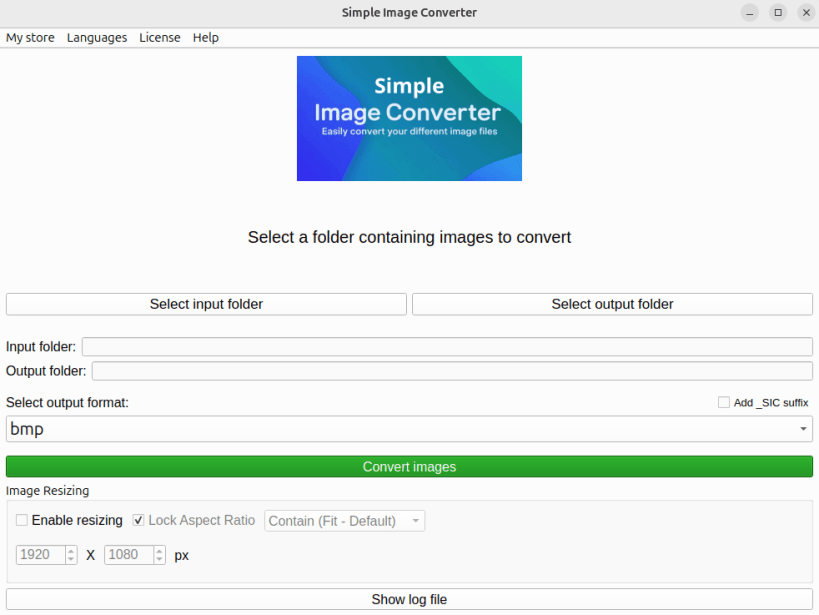
Pro Resizing Engine: Resize your images on the fly while preserving their aspect ratio. Choose between Fit (Contain), Crop, or Fill (Pad with transparent borders).
Zero-Freeze Architecture: The core engine has been completely rewritten and isolated. The UI remains 100% responsive, even when processing massive batches of complex documents.
Safe-by-Default & Organization: No more accidental overwrites! The app now applies smart auto-numbering (e.g., _1) for existing files and offers a custom _SIC suffix option for easy identification.
Compression Analysis: Instantly view the exact storage space gained or lost at the end of each batch process.
Expanded Localization: The application now fluently speaks Japanese (bringing the total to 7 supported languages).
Hardened Security & Compliance (CWE Standards):
Anti-Pixel Bomb & XXE Shield: The new isolated engine provides robust defense against malicious payloads and decompression bombs.
CWE-377 (Atomic Isolation): Secure handling of temporary buffers in restricted 0700 directories to prevent data leakage.
CWE-209 (Privacy-First Logging): Automatic anonymization of system logs (masking personal paths and session names) ensures no sensitive metadata is exposed, even when sharing logs with support.
Key Features:
100% Private: No internet connection required. Guaranteed protection against data harvesting.
Multilingual Support: Available in 7 languages: English, French, German, Spanish, Italian, Portuguese (BR), and Japanese.
Universal Format Support: Convert between PDF, PNG, JPG, WEBP, ICO, BMP, GIF, TIFF, XPS, and OXPS.
SVG Specialist: Seamlessly transform vector SVG files into any standard raster format or PDF.
Multi-Page Intelligence: Automatically handles multi-page TIFF and GIF generation, or splits documents into individual page-per-file images.
Granular Quality Control: Fine-tune JPG/WEBP exports and choose from 4 PDF optimization levels.
How to Use:
Select Folders: Choose your source directory and your destination folder.
Pick Format: Select your target output format.
Set Quality & Size: Adjust compression levels and choose your preferred resizing mode (Contain, Crop, Pad).
Convert: Click "Convert Images" and follow the real-time progress bar.
Audit: Access the detailed, anonymized app.log directly from the UI for full transparency.
⚠️ IMPORTANT: Accessing External Drives (USB / Secondary Drives) By default, the strict security confinement prevents the app from reading your USB sticks or external hard drives. If your files are stored on removable media, you must grant access by running this command once in your terminal:
COMMAND:
sudo snap connect simple-image-converter:removable-media
You are about to open
Do you wish to proceed?
Thank you for your report. Information you provided will help us investigate further.
There was an error while sending your report. Please try again later.
Snaps are applications packaged with all their dependencies to run on all popular Linux distributions from a single build. They update automatically and roll back gracefully.
Snaps are discoverable and installable from the Snap Store, an app store with an audience of millions.
Snap can be installed from the command line on openSUSE Leap 15.x and Tumbleweed.
You need first add the snappy repository from the terminal. Choose the appropriate command depending on your installed openSUSE flavor.
Tumbleweed:
sudo zypper addrepo --refresh https://download.opensuse.org/repositories/system:/snappy/openSUSE_Tumbleweed snappy
Leap 15.x:
sudo zypper addrepo --refresh https://download.opensuse.org/repositories/system:/snappy/openSUSE_Leap_15.6 snappy
If needed, Swap out openSUSE_Leap_15. for, openSUSE_Leap_16.0 if you’re using a different version of openSUSE.
With the repository added, import its GPG key:
sudo zypper --gpg-auto-import-keys refresh
Finally, upgrade the package cache to include the new snappy repository:
sudo zypper dup --from snappy
Snap can now be installed with the following:
sudo zypper install snapd
You then need to either reboot, logout/login or source /etc/profile to have /snap/bin added to PATH.
Additionally, enable and start both the snapd and the snapd.apparmor services with the following commands:
sudo systemctl enable --now snapd
sudo systemctl enable --now snapd.apparmor
To install Simple-Image-Converter, simply use the following command:
sudo snap install simple-image-converter
Browse and find snaps from the convenience of your desktop using the snap store snap.

Interested to find out more about snaps? Want to publish your own application? Visit snapcraft.io now.