
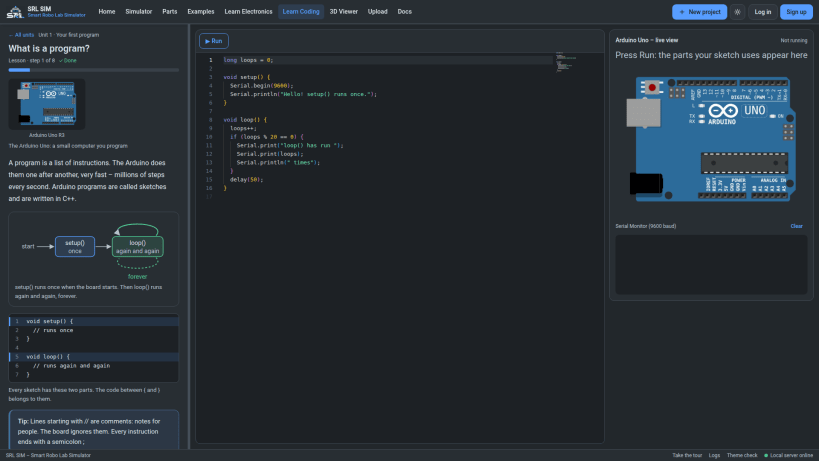
SRL SIM, the Smart Robo Lab Simulator, is a desktop app for learning electronics and embedded coding. Wire a circuit on the canvas, write the code, press Start and watch it run – then upload the same code to a real board.
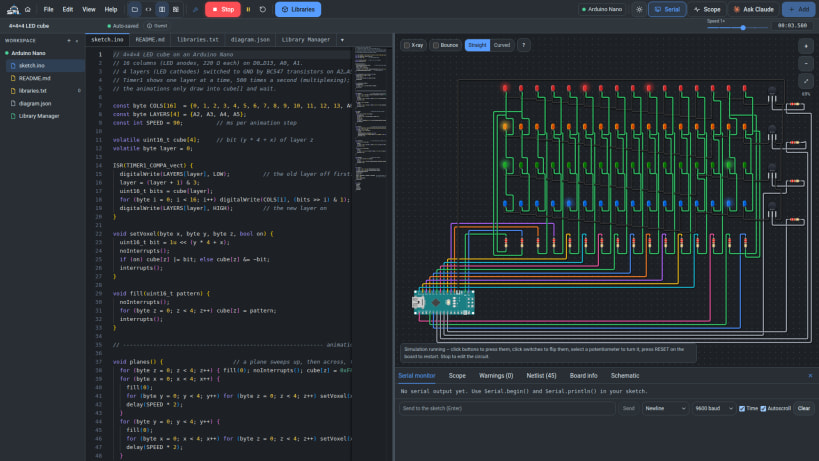
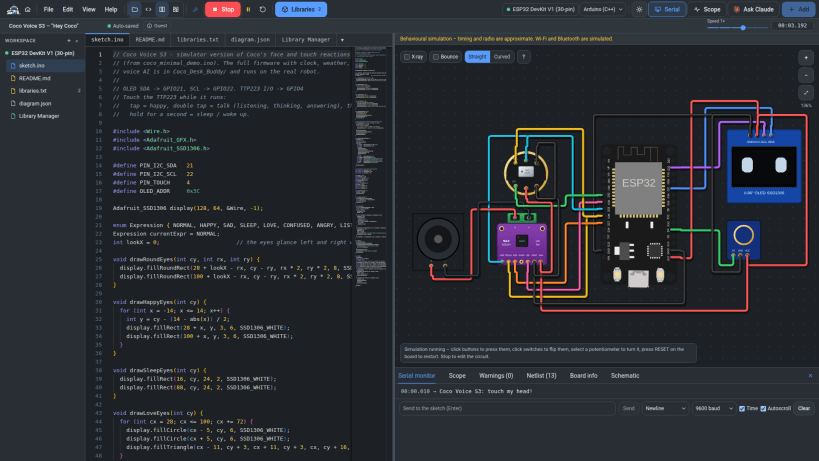
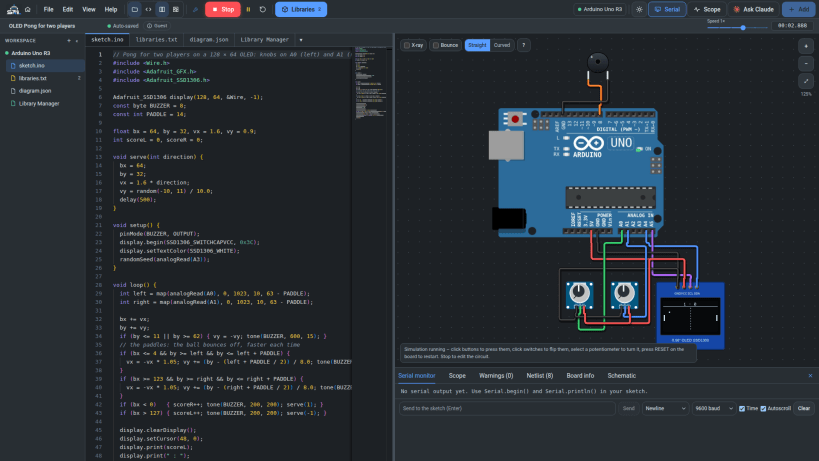
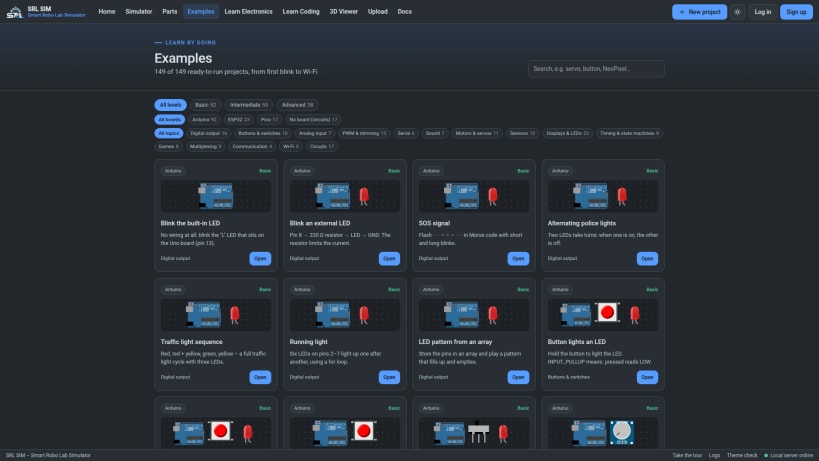
WHAT YOU CAN DO • Build circuits from 260+ parts: LEDs, resistors, buttons, potentiometers, sensors, motors, servos, NeoPixels, 7-segment displays, OLED and LCD displays, shift registers, transistors, power supplies and meters. • Write Arduino C++ for the Uno, Nano and Pro Mini (real firmware on a cycle-accurate simulated ATmega328P), the Raspberry Pi Pico (real RP2040 firmware), and ESP32 / XIAO boards; or MicroPython and CircuitPython on ESP32 and Pico. • See it run: LEDs light, displays draw, servos turn, the serial monitor prints; press buttons and turn knobs while it runs. Scope, netlist, schematic and circuit warnings (missing resistors, short circuits, floating inputs, pin overloads). • Check your code without running it: errors with plain-language tips, warnings, and how much flash and RAM it uses. Libraries named by your #include lines are added and installed by themselves. • Upload to a real board over USB (Arduino, ESP32, Pico) with a clear step-by-step progress view. • 150+ ready examples, from "Blink an LED" to a 4×4×4 LED cube, OLED Pong, LCD projects and the Coco desk buddy robot. • Learn Electronics and Learn Coding: lessons and exercises checked on a simulated board. • 3D Viewer for STL, OBJ, 3MF and glTF files (each part of an STL in its own colour). • Ask Claude: your own Claude account can explain, fix or build the project with you (optional). • Your projects stay on your computer. Export all of them at once, import many files at once, open Wokwi projects and diagram.json files, and let an AI chat draw a circuit for you.
USB BOARDS To upload to a real board, allow USB access once: sudo snap connect srl-sim:raw-usb
Made by Smart Robo Lab – https://smart-robo-lab.vercel.app
You are about to open
Do you wish to proceed?
Thank you for your report. Information you provided will help us investigate further.
There was an error while sending your report. Please try again later.
Snaps are applications packaged with all their dependencies to run on all popular Linux distributions from a single build. They update automatically and roll back gracefully.
Snaps are discoverable and installable from the Snap Store, an app store with an audience of millions.
Snap can be installed from the command line on openSUSE Leap 15.x and Tumbleweed.
You need first add the snappy repository from the terminal. Choose the appropriate command depending on your installed openSUSE flavor.
Tumbleweed:
sudo zypper addrepo --refresh https://download.opensuse.org/repositories/system:/snappy/openSUSE_Tumbleweed snappy
Leap 15.x:
sudo zypper addrepo --refresh https://download.opensuse.org/repositories/system:/snappy/openSUSE_Leap_15.6 snappy
If needed, Swap out openSUSE_Leap_15. for, openSUSE_Leap_16.0 if you’re using a different version of openSUSE.
With the repository added, import its GPG key:
sudo zypper --gpg-auto-import-keys refresh
Finally, upgrade the package cache to include the new snappy repository:
sudo zypper dup --from snappy
Snap can now be installed with the following:
sudo zypper install snapd
You then need to either reboot, logout/login or source /etc/profile to have /snap/bin added to PATH.
Additionally, enable and start both the snapd and the snapd.apparmor services with the following commands:
sudo systemctl enable --now snapd
sudo systemctl enable --now snapd.apparmor
To install SRL SIM – Smart Robo Lab Simulator, simply use the following command:
sudo snap install srl-sim
Browse and find snaps from the convenience of your desktop using the snap store snap.

Interested to find out more about snaps? Want to publish your own application? Visit snapcraft.io now.


