
This app is meant to be a customizable countdown in wxwidgets.
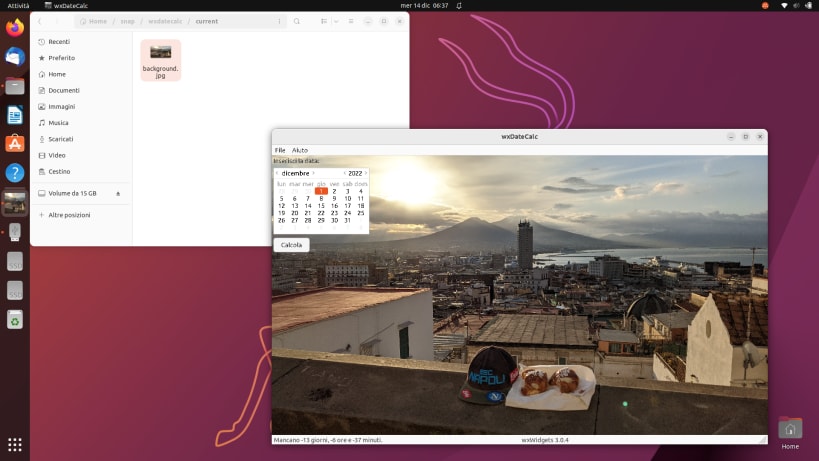
Let's begin immediately by saying that the chosen date can also be prior to the present one, in this case the calculation will be negative, nothing prevents it, but it is not the correct way to use the application.
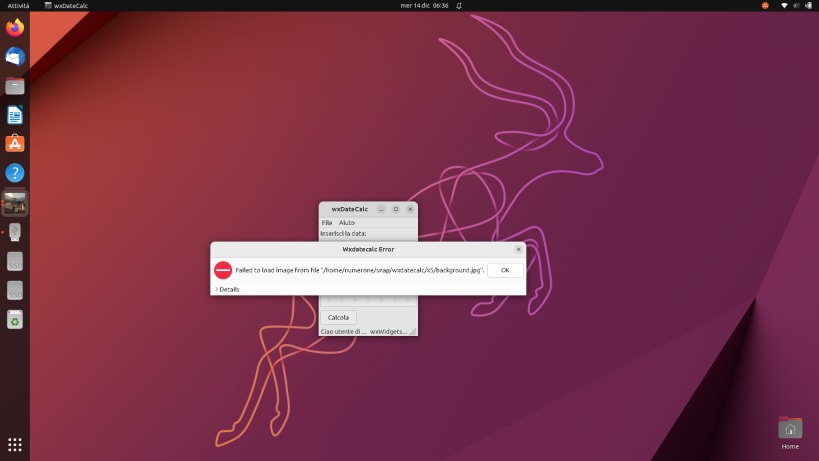
If the system language is neither Italian, nor English, nor French, nor German, nor Spanish, nor Portuguese, starting the app a notification will appear saying that the translation does not exist and the app will open in English, otherwise the The app will open in one of these languages, then just the message that the background for the app cannot be found, will still work fine.
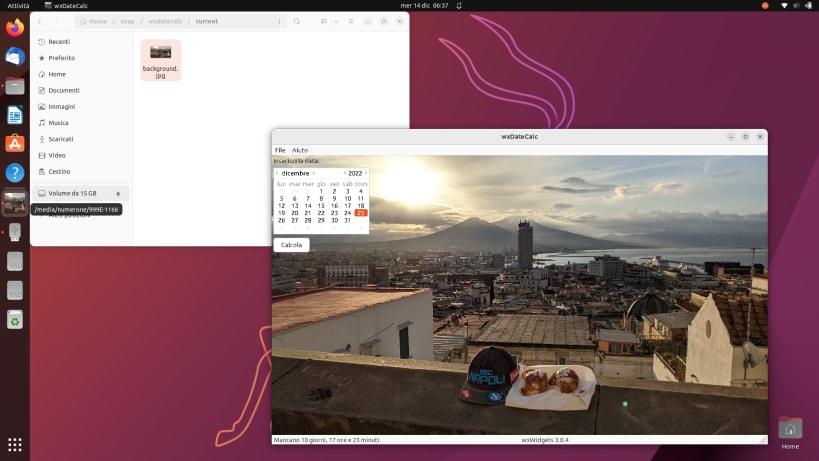
To fully enjoy the app, you need to set a file named background.jpg in the home/snap/wxdatecalc/current directory, in this way by opening the app you can fully enjoy the image inserted as background.
By clicking on the button, the message "missing x days y hours z minutes" will appear in the old status bar. Everything is managed by wxwidgets, and therefore basically there is a wxtimespan which is a class that manages long types, for which it is possible to set dates also very far from becoming.
The set date is saved when the program is exited, in order to have a better use of it.
Nothing is submitted online.
You are about to open
Do you wish to proceed?
Thank you for your report. Information you provided will help us investigate further.
There was an error while sending your report. Please try again later.
Snaps are applications packaged with all their dependencies to run on all popular Linux distributions from a single build. They update automatically and roll back gracefully.
Snaps are discoverable and installable from the Snap Store, an app store with an audience of millions.
If you’re running Ubuntu 16.04 LTS (Xenial Xerus) or later, including Ubuntu 18.04 LTS (Bionic Beaver) and Ubuntu 20.04 LTS (Focal Fossa), you don’t need to do anything. Snap is already installed and ready to go.
For versions of Ubuntu between 14.04 LTS (Trusty Tahr) and 15.10 (Wily Werewolf), as well as Ubuntu flavours that don’t include snap by default, snap can be installed from the Ubuntu Software Centre by searching for snapd.
Alternatively, snapd can be installed from the command line:
sudo apt update
sudo apt install snapd
Either log out and back in again, or restart your system, to ensure snap’s paths are updated correctly.
To install wxDateCalc, simply use the following command:
sudo snap install wxdatecalc
Browse and find snaps from the convenience of your desktop using the snap store snap.

Interested to find out more about snaps? Want to publish your own application? Visit snapcraft.io now.